> ## Documentation Index
> Fetch the complete documentation index at: https://parser.xdr.ooo/llms.txt
> Use this file to discover all available pages before exploring further.
# Auto Parser | From pasted logs to files
> The exact buttons to click when your logs parse correctly and how to recover if they do not.
# Auto Parser: the normal way to create a parser
You do **not** need to recognize the format or write parsing expressions. Begin with a few complete examples of the product's logs and work through the four visible stages.
1. Add Logs→2. Review Fields→3. Map Fields→4. Create Parser
## 1. Add Logs — just paste and click Analyze Logs
1. Select **Auto Parser** in the left menu.
2. Optionally fill in the source **Manufacturer**, **Product** and **Version** in the **Parser identity** area. Confirm these before creating files.
3. Paste a few full source events into **Add Logs**, or choose **Upload a log file** for a small text file. The screen shows a maximum of **64 KiB / 500 events**.
4. Click the orange **Analyze Logs** button.
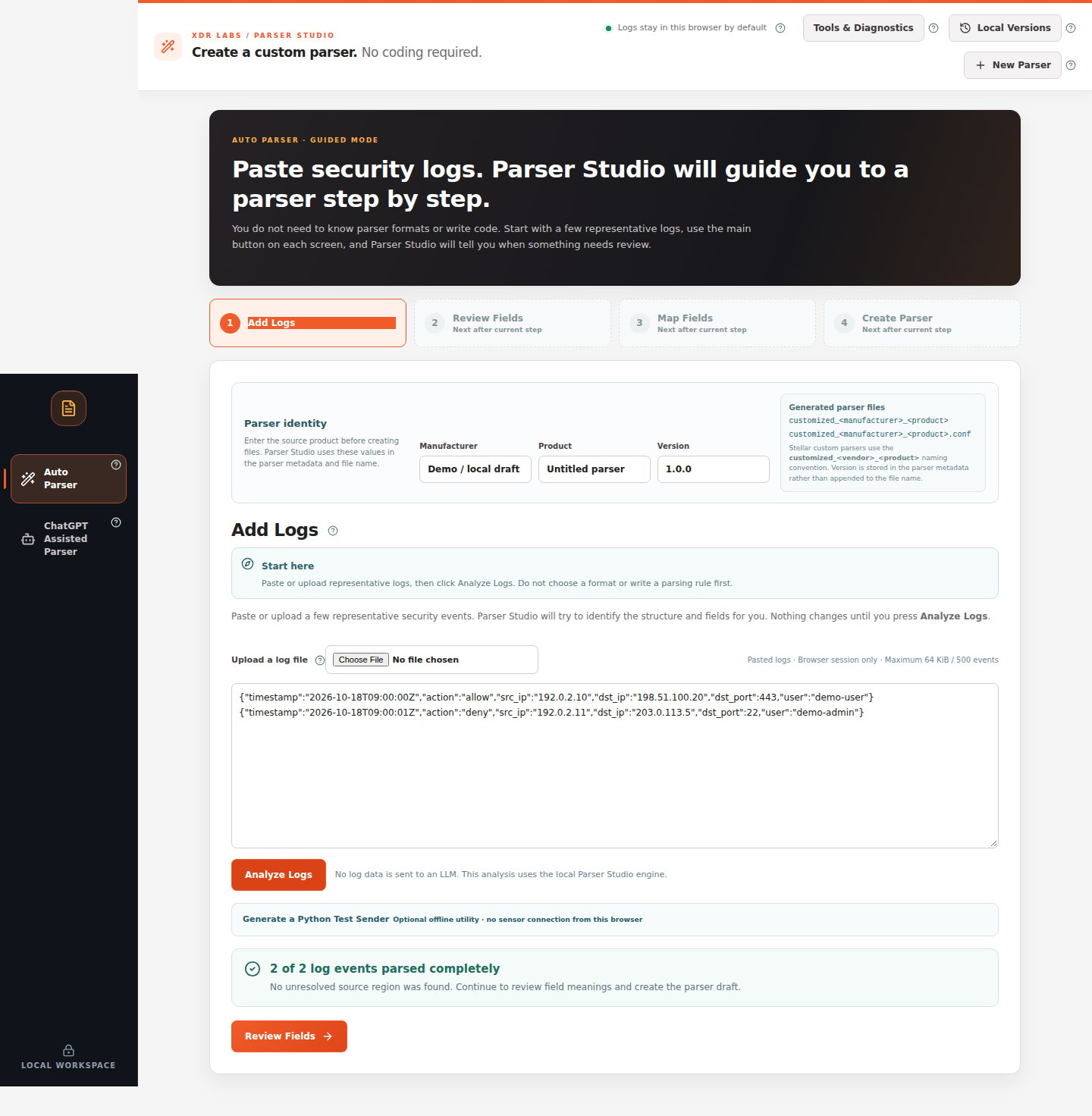 *A complete result means you can continue to Review Fields. You do not need to choose the record format.*
| What appears after analysis | What you should click |
| - | - |
| **N of N log events parsed completely** | **Review Fields** |
| **One or more events need attention** | **Problem to review** → read **Recommended fix**; see [partial extraction](/scenarios/partial-event) |
| **Unknown or unsupported structure** | **Fix with ChatGPT** or **ChatGPT Assisted Parser**; see [unrecognized logs](/scenarios/unknown-log) |
| **Values found but no column names** | **Keep all values with temporary names** or enter your documented column names; see [CSV](/scenarios/unnamed-values) |
| **Different log shapes were found** | **Analyze group 1**, or review the combined supported result; see [multiple event types](/scenarios/mixed-events) |
## 2. Review Fields — confirm what was extracted
Click **Review Fields**. Use **Choose a source event** to compare the **Original log** with **Fields Parser Studio found** and **Current output preview**. Inspect ordinary and unusual events. If values are correct, choose **Map Fields** at the bottom.
*A complete result means you can continue to Review Fields. You do not need to choose the record format.*
| What appears after analysis | What you should click |
| - | - |
| **N of N log events parsed completely** | **Review Fields** |
| **One or more events need attention** | **Problem to review** → read **Recommended fix**; see [partial extraction](/scenarios/partial-event) |
| **Unknown or unsupported structure** | **Fix with ChatGPT** or **ChatGPT Assisted Parser**; see [unrecognized logs](/scenarios/unknown-log) |
| **Values found but no column names** | **Keep all values with temporary names** or enter your documented column names; see [CSV](/scenarios/unnamed-values) |
| **Different log shapes were found** | **Analyze group 1**, or review the combined supported result; see [multiple event types](/scenarios/mixed-events) |
## 2. Review Fields — confirm what was extracted
Click **Review Fields**. Use **Choose a source event** to compare the **Original log** with **Fields Parser Studio found** and **Current output preview**. Inspect ordinary and unusual events. If values are correct, choose **Map Fields** at the bottom.
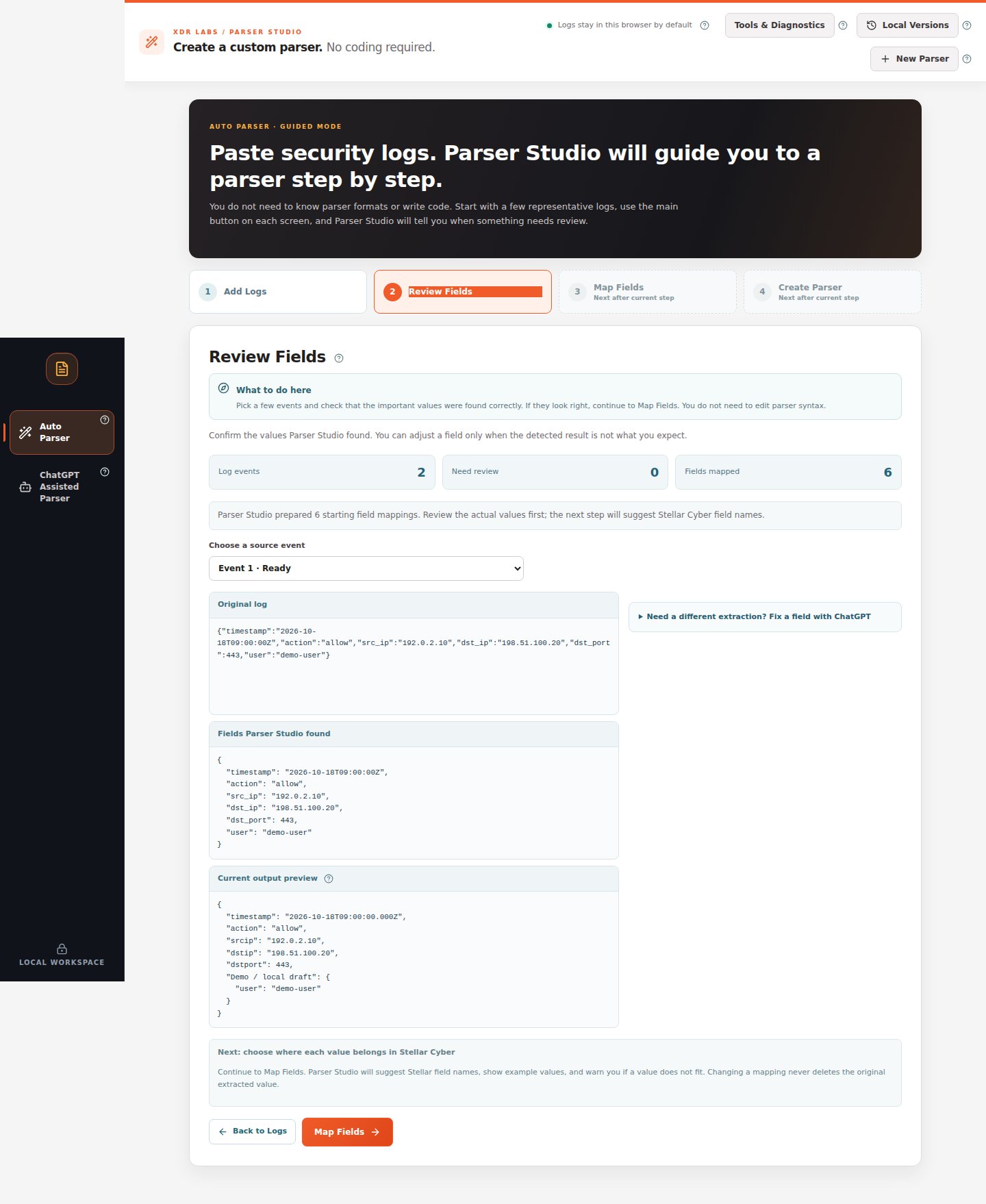 *For most users, reviewing the values is enough—there is no parsing code to edit.*
[How to handle an incorrect extracted field](/workflows/review-fields)
## 3. Map Fields — confirm names and value types
Check each important field's source value, suggested **Stellar field name**, and **Value type**. The **Must fix before continuing** count should be **0**. Apply recommended matches only where their meaning is correct. If everything is fine, choose **Create Parser**.
*For most users, reviewing the values is enough—there is no parsing code to edit.*
[How to handle an incorrect extracted field](/workflows/review-fields)
## 3. Map Fields — confirm names and value types
Check each important field's source value, suggested **Stellar field name**, and **Value type**. The **Must fix before continuing** count should be **0**. Apply recommended matches only where their meaning is correct. If everything is fine, choose **Create Parser**.
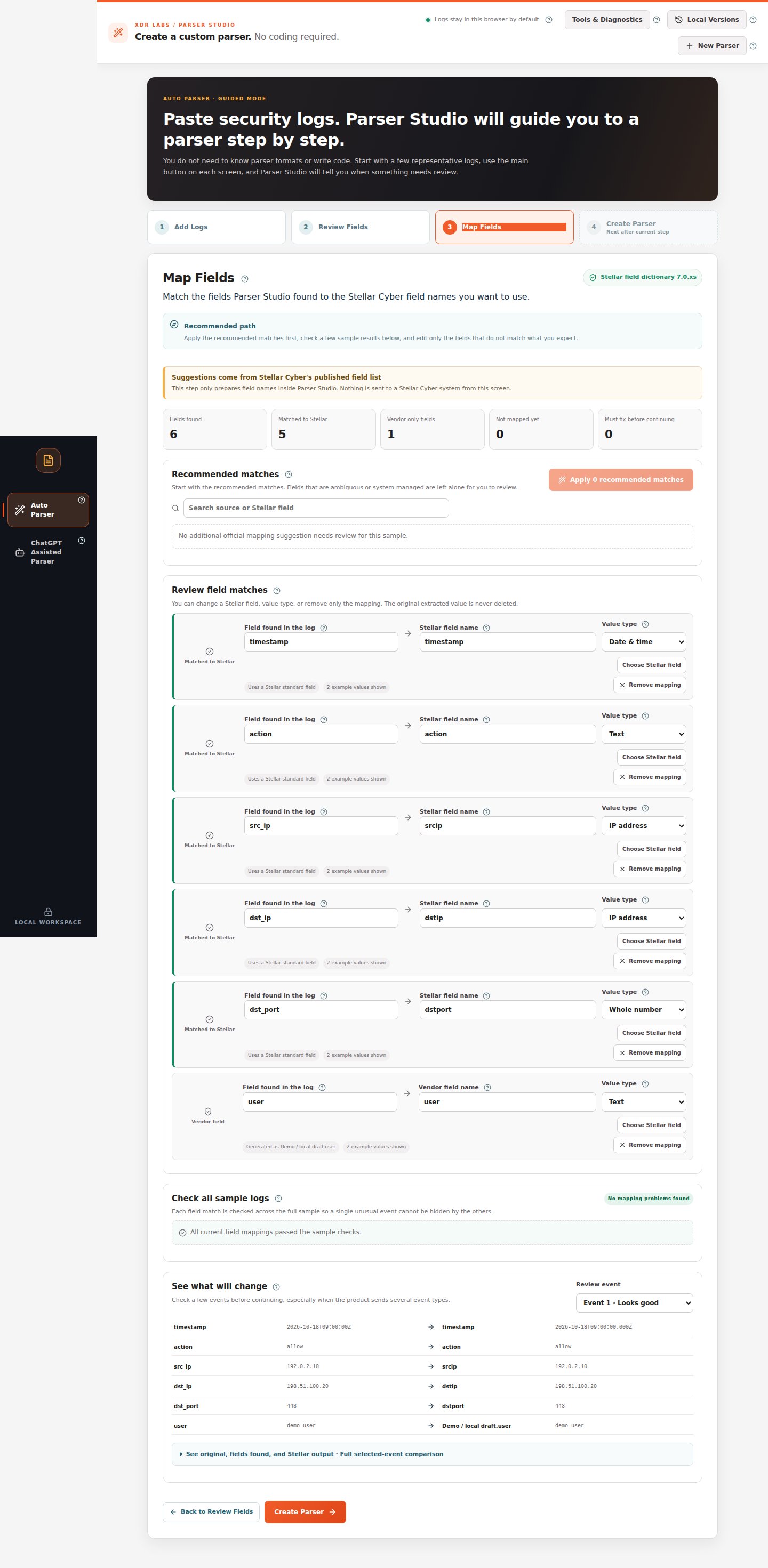 *Check the sample values before changing any mapping.*
[How to fix an incorrect mapping](/workflows/map-fields)
## 4. Create Parser — final test and download
Confirm **Need fixing = 0**, then click **Run Final Test & Create Files**. If the generator succeeds, download the generated **Ruby parser logic** and **CONF** files together. If the generator is unavailable or rejects a rule, the screen will not present a verified output—return to the indicated step.
*Check the sample values before changing any mapping.*
[How to fix an incorrect mapping](/workflows/map-fields)
## 4. Create Parser — final test and download
Confirm **Need fixing = 0**, then click **Run Final Test & Create Files**. If the generator succeeds, download the generated **Ruby parser logic** and **CONF** files together. If the generator is unavailable or rejects a rule, the screen will not present a verified output—return to the indicated step.
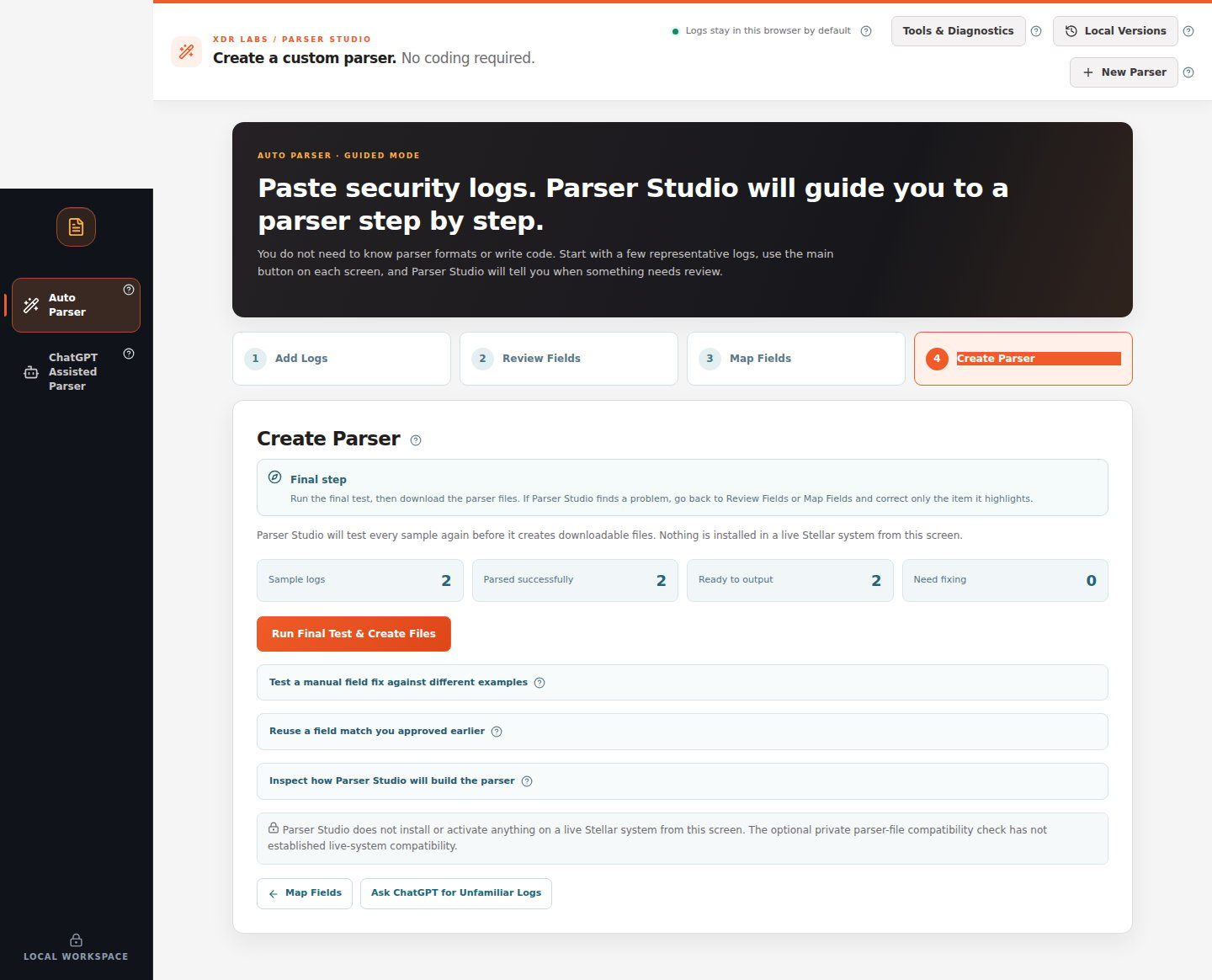 *The screenshot shows the final action before file generation. Actual download controls require a successful validated result.*
Use **Tools & Diagnostics** only when you need more information than the normal result provides. It is not required for a passing parser.
## Still having trouble?
Use the highlighted section and the recommended repair.
Prepare a manually reviewed ChatGPT prompt.
Check all event families before making a combined parser.
Understand final-test and service errors.
This documentation is built and hosted on [Mintlify](https://mintlify.com), a developer documentation platform.
*The screenshot shows the final action before file generation. Actual download controls require a successful validated result.*
Use **Tools & Diagnostics** only when you need more information than the normal result provides. It is not required for a passing parser.
## Still having trouble?
Use the highlighted section and the recommended repair.
Prepare a manually reviewed ChatGPT prompt.
Check all event families before making a combined parser.
Understand final-test and service errors.
This documentation is built and hosted on [Mintlify](https://mintlify.com), a developer documentation platform.