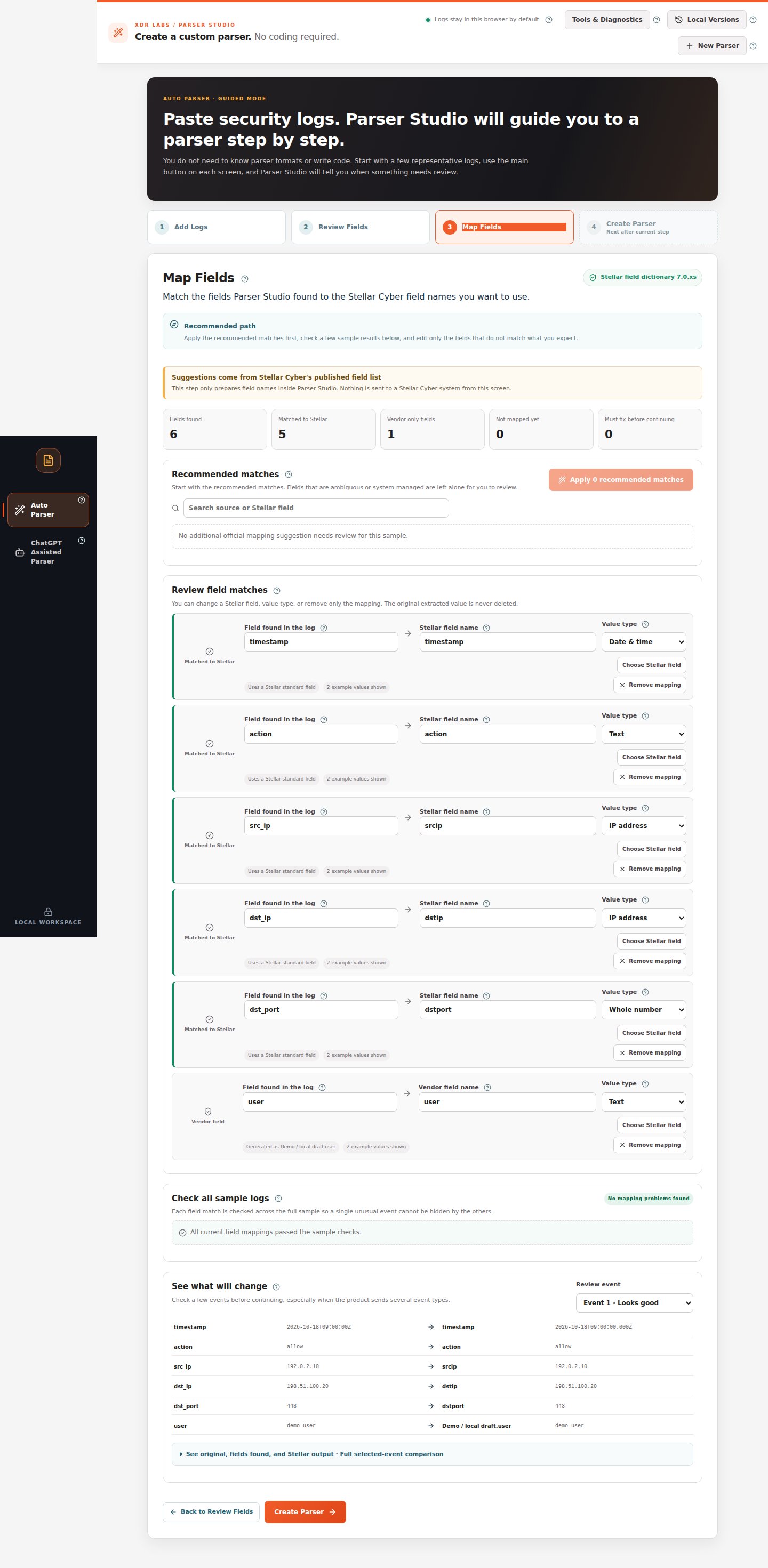
The output destination matches the actual meaning of the source value on all tested events. Corrected mappings do not erase the original extracted data.
If a mapping reports two fields use the same destination, value type mismatch or reserved field, follow the on-screen finding. If you cannot determine the meaning, keep the source under a neutral vendor field until verified.Next:Mapping explanation.
Last modified on October 18, 2026
{"docsConfig":{"theme":"mint","$schema":"https://mintlify.com/docs.json","name":"Parser Studio","description":"Beginner-first security log parsing: paste, analyze, review field mappings, troubleshoot and create reviewed parser drafts.","colors":{"primary":"#1F59E0","light":"#2982E8","dark":"#5B8CFF"},"logo":{"light":"https://mintcdn.com/xdr-parser/ikxjh1RO0I43Fgnk/logo/light.svg?fit=max\u0026auto=format\u0026n=ikxjh1RO0I43Fgnk\u0026q=85\u0026s=5302a6b336dc4d20f4ed89fb69585e96","dark":"https://mintcdn.com/xdr-parser/ikxjh1RO0I43Fgnk/logo/dark.svg?fit=max\u0026auto=format\u0026n=ikxjh1RO0I43Fgnk\u0026q=85\u0026s=3d61852283d0e875f806175b341e81dd","href":"https://parser.xdr.ooo"},"favicon":"https://mintcdn.com/xdr-parser/ikxjh1RO0I43Fgnk/favicon.svg?fit=max\u0026auto=format\u0026n=ikxjh1RO0I43Fgnk\u0026q=85\u0026s=260e8e500d0ac2180e93e6e99f048277","appearance":{"default":"system","strict":false},"navbar":{"links":[{"href":"https://xdr.ooo","label":"XDR Labs"},{"href":"https://github.com/xdr-labs/parser-studio","type":"github"}],"primary":{"type":"button","label":"Start with logs","href":"/quickstart"}},"search":{"prompt":"How do I analyze my logs?"},"seo":{"indexing":"navigable"},"styling":{"eyebrows":"breadcrumbs","latex":false},"metadata":{"timestamp":true},"navigation":{"pages":[]}},"deployment":{"deploymentMetadataValue":{"subdomain":"xdr-parser","hasAudioNarration":false,"actualSubdomain":"xdr-parser","customDomains":["parser.xdr.ooo"],"gitSource":{"type":"github","owner":"xdr-labs","repo":"parser-studio-docs","deployBranch":"main","contentDirectory":"","isPrivate":false,"mountPath":"","label":""},"chroma":{"latestBuiltDeploymentHistoryId":"6ad4f0f61750c8dfe79983de","collectionId":"d71d9dd3-7746-4d82-a03b-1d292da8ad82","liveDeploymentHistoryId":"6ad4f0f61750c8dfe79983de","schemaVersion":"v3"},"entitlements":{},"buildId":"6ad4f2ca6c1765c4cdc13903","clientVersion":"0.0.3880","searchFilterCounts":[{"language":"default","tag":"Auto Parser Scenarios","count":8},{"language":"default","tag":"Reference","count":6},{"language":"default","tag":"ChatGPT Assisted Scenarios","count":4},{"language":"default","tag":"Auto Parser","count":4},{"language":"default","tag":"Start Here","count":3},{"language":"default","tag":"ChatGPT Assisted Parser","count":2},{"language":"default","tag":"Scenario Playbooks","count":1}]},"assistantConfig":{"enableAskAiButton":false,"enableStarterQuestions":false,"enableContextualStarterQuestions":false,"enableAskAiSearchBar":true},"hasChatPermissions":false,"hasWebMcpPermissions":false,"toggles":[{"name":"kill-isr","enabled":true,"variant":{"name":"disabled","enabled":false,"feature_enabled":true},"impressionData":false},{"name":"agent-mintlify-slack","enabled":true,"variant":{"name":"disabled","enabled":false,"feature_enabled":true},"impressionData":false},{"name":"editor-v7-file-tree","enabled":true,"variant":{"name":"disabled","enabled":false,"feature_enabled":true},"impressionData":false},{"name":"agent-integrations-settings","enabled":true,"variant":{"name":"disabled","enabled":false,"feature_enabled":true},"impressionData":false},{"name":"automations-pr-grouping","enabled":true,"variant":{"name":"disabled","enabled":false,"feature_enabled":true},"impressionData":false},{"name":"custom-prefix","enabled":true,"variant":{"name":"disabled","enabled":false,"feature_enabled":true},"impressionData":false},{"name":"analytics-v7","enabled":true,"variant":{"name":"disabled","enabled":false,"feature_enabled":true},"impressionData":false},{"name":"user-flows-analytics","enabled":true,"variant":{"name":"disabled","enabled":false,"feature_enabled":true},"impressionData":false},{"name":"no-publish-flow","enabled":true,"variant":{"name":"disabled","enabled":false,"feature_enabled":true},"impressionData":false},{"name":"llms-txt-v2","enabled":true,"variant":{"name":"disabled","enabled":false,"feature_enabled":true},"impressionData":false},{"name":"pause-universal-search-reconcile","enabled":true,"variant":{"name":"disabled","enabled":false,"feature_enabled":true},"impressionData":false},{"name":"snapshot-serving-live","enabled":true,"variant":{"name":"disabled","enabled":false,"feature_enabled":true},"impressionData":false},{"name":"stripTemperatureMiddleware","enabled":true,"variant":{"name":"disabled","enabled":false,"feature_enabled":true},"impressionData":false},{"name":"per-site-search-delta","enabled":true,"variant":{"name":"disabled","enabled":false,"feature_enabled":true},"impressionData":false},{"name":"support-platform-pylon-zendesk","enabled":true,"variant":{"name":"disabled","enabled":false,"feature_enabled":true},"impressionData":false},{"name":"editor-branches-v2-autocommit","enabled":true,"variant":{"name":"disabled","enabled":false,"feature_enabled":true},"impressionData":false},{"name":"editor-branches-v2","enabled":true,"variant":{"name":"disabled","enabled":false,"feature_enabled":true},"impressionData":false},{"name":"snapshot-serving","enabled":true,"variant":{"name":"disabled","enabled":false,"feature_enabled":true},"impressionData":false},{"name":"instant-rollback","enabled":true,"variant":{"name":"disabled","enabled":false,"feature_enabled":true},"impressionData":false},{"name":"granular-notifications-server","enabled":true,"variant":{"name":"disabled","enabled":false,"feature_enabled":true},"impressionData":false},{"name":"granular-notifications","enabled":true,"variant":{"name":"disabled","enabled":false,"feature_enabled":true},"impressionData":false},{"name":"editor-private-page-search","enabled":true,"variant":{"name":"disabled","enabled":false,"feature_enabled":true},"impressionData":false},{"name":"automations-fable","enabled":true,"variant":{"name":"disabled","enabled":false,"feature_enabled":true},"impressionData":false},{"name":"fixed-ai-action-pricing","enabled":true,"variant":{"name":"disabled","enabled":false,"feature_enabled":true},"impressionData":false},{"name":"automation-resolve-merge-conflict","enabled":true,"variant":{"name":"disabled","enabled":false,"feature_enabled":true},"impressionData":false},{"name":"scoped-publishing","enabled":true,"variant":{"name":"disabled","enabled":false,"feature_enabled":true},"impressionData":false},{"name":"mintql","enabled":true,"variant":{"name":"disabled","enabled":false,"feature_enabled":true},"impressionData":false},{"name":"page-level-analytics","enabled":true,"variant":{"name":"disabled","enabled":false,"feature_enabled":true},"impressionData":false},{"name":"teamspace","enabled":true,"variant":{"name":"disabled","enabled":false,"feature_enabled":true},"impressionData":false},{"name":"editor-version-history-v2","enabled":true,"variant":{"name":"disabled","enabled":false,"feature_enabled":true},"impressionData":false},{"name":"editor-nav-generations","enabled":true,"variant":{"name":"disabled","enabled":false,"feature_enabled":true},"impressionData":false},{"name":"workspace-projects","enabled":true,"variant":{"name":"disabled","enabled":false,"feature_enabled":true},"impressionData":false},{"name":"assistant-v5","enabled":true,"variant":{"name":"disabled","enabled":false,"feature_enabled":true},"impressionData":false},{"name":"byok-sep-25","enabled":true,"variant":{"name":"disabled","enabled":false,"feature_enabled":true},"impressionData":false},{"name":"revalidation-jwt","enabled":true,"variant":{"name":"disabled","enabled":false,"feature_enabled":true},"impressionData":false},{"name":"editor-agent-model-picker","enabled":true,"variant":{"name":"disabled","enabled":false,"feature_enabled":true},"impressionData":false},{"name":"client-snapshot-docs-config","enabled":true,"variant":{"name":"disabled","enabled":false,"feature_enabled":true},"impressionData":false},{"name":"hobby-abuse-scan","enabled":true,"variant":{"name":"disabled","enabled":false,"feature_enabled":true},"impressionData":false}],"isAtlas":false,"googleFontsInlined":false},"customCss":[{"filePath":"style.css","content":":root{--xdr-navy:#0a182d;--xdr-navy-deep:#030f1b;--xdr-blue:#1f59e0;--xdr-blue-bright:#2982e8;--xdr-cyan:#55c7f3;--xdr-orange:#ff9b1d;--xdr-ink:#0f172a;--xdr-muted:#64748b;--xdr-border:rgba(148, 163, 184, 0.22)}html{scroll-behavior:smooth}body{font-family:Inter,ui-sans-serif,system-ui,-apple-system,BlinkMacSystemFont,\"Segoe UI\",sans-serif}h1,h2,h3{letter-spacing:-.025em}a{text-underline-offset:.18em}.xdr-hero{position:relative;overflow:hidden;margin:0 0 2.5rem;padding:clamp(2rem,5vw,4.5rem);border:1px solid rgba(85,199,243,.22);border-radius:28px;background:radial-gradient(circle at 82% 18%,rgba(41,130,232,.42),transparent 30%),radial-gradient(circle at 10% 110%,rgba(31,89,224,.34),transparent 38%),linear-gradient(135deg,var(--xdr-navy-deep) 0%,var(--xdr-navy) 58%,#102a51 100%);box-shadow:0 28px 70px rgba(3,15,27,.24);color:#fff}.xdr-hero::before{content:\"\";position:absolute;inset:0;background-image:linear-gradient(rgba(255,255,255,.035) 1px,transparent 1px),linear-gradient(90deg,rgba(255,255,255,.035) 1px,transparent 1px);background-size:42px 42px;mask-image:linear-gradient(to bottom,rgba(0,0,0,.8),transparent 85%)}.xdr-hero::after{content:\"\";position:absolute;width:18rem;height:18rem;right:-5rem;top:-7rem;border-radius:999px;border:1px solid rgba(255,155,29,.38);box-shadow:0 0 90px rgba(255,155,29,.1)}.xdr-hero>*{position:relative;z-index:1}.xdr-kicker{margin:0 0 .9rem;color:#9edfff;font-size:.78rem;font-weight:800;letter-spacing:.14em;text-transform:uppercase}.xdr-hero-title{max-width:14ch;margin:0;color:#fff!important;font-size:clamp(2.35rem,6vw,4.8rem);font-weight:780;line-height:.98;letter-spacing:-.055em}.xdr-hero-copy{max-width:48rem;margin:1.5rem 0 0;color:#d8e6f8;font-size:clamp(1rem,1.6vw,1.2rem);line-height:1.75}.xdr-hero-actions{display:flex;flex-wrap:wrap;gap:.75rem;margin-top:1.8rem}.xdr-hero-actions a{display:inline-flex;align-items:center;justify-content:center;min-height:2.9rem;padding:.72rem 1.1rem;border-radius:999px;font-weight:750;text-decoration:none!important;transition:transform 160ms ease,box-shadow 160ms ease,border-color 160ms ease}.xdr-hero-actions a:hover{transform:translateY(-1px)}.xdr-hero-primary{background:linear-gradient(135deg,var(--xdr-blue),#1e4eb8);color:#fff!important;box-shadow:0 12px 28px rgba(31,89,224,.34)}.xdr-hero-secondary{border:1px solid rgba(255,255,255,.24);background:rgba(255,255,255,.07);color:#fff!important;backdrop-filter:blur(10px)}.xdr-signal-grid{display:grid;grid-template-columns:repeat(3,minmax(0,1fr));gap:.75rem;margin-top:2.1rem}.xdr-signal{min-height:7.25rem;padding:1rem 1.05rem;border:1px solid rgba(255,255,255,.12);border-radius:18px;background:rgba(5,18,38,.48);backdrop-filter:blur(12px)}.xdr-signal strong{display:block;margin-bottom:.35rem;color:#fff;font-size:1rem}.xdr-signal span{color:#b9cbe0;font-size:.88rem;line-height:1.5}.xdr-section-intro{max-width:47rem;margin:-.4rem 0 1.25rem;color:var(--xdr-muted);font-size:1.02rem;line-height:1.7}article h2{margin-top:2.8rem}article table{border-radius:16px;overflow:hidden}article img{border-radius:14px}.dark .xdr-section-intro{color:#94a3b8}@media (max-width:720px){.xdr-hero{padding:1.6rem;border-radius:22px}.xdr-hero-title{font-size:clamp(2.15rem,12vw,3.2rem)}.xdr-hero-actions{flex-direction:column}.xdr-hero-actions a{width:100%}.xdr-signal-grid{grid-template-columns:1fr}}@media (prefers-reduced-motion:reduce){html{scroll-behavior:auto}.xdr-hero-actions a{transition:none}}.ps-shot{margin:1.3rem 0 2rem}.ps-shot img{display:block;width:100%;height:auto;box-shadow:0 16px 36px rgba(10,24,45,.11)}.ps-shot figcaption{font-size:.87rem;line-height:1.55;color:var(--xdr-muted);margin-top:.6rem}.dark .ps-shot figcaption{color:#a7b8cc}.ps-flow{display:flex;flex-wrap:wrap;align-items:center;gap:.55rem;margin:1.2rem 0 2rem}.ps-flow span{border:1px solid rgba(31,89,224,.25);background:rgba(31,89,224,.06);border-radius:12px;padding:.65rem .8rem;font-weight:700;font-size:.88rem}.ps-flow b{color:var(--xdr-blue);font-weight:800}.ps-shot img,.ps-step-graphic{border:1px solid var(--xdr-border);border-radius:16px}.ps-step-graphic{max-width:100%}@media (max-width:720px){.ps-shot img{border-radius:12px}.ps-flow{gap:.3rem}.ps-flow span{font-size:.76rem}}"}],"page":{"pagePath":"scenarios/normalization","slug":"/scenarios/normalization","pageMetadata":{"title":"The fields were found, but their output names are wrong","sidebarTitle":"Wrong Output Field","description":"How to change just the mapping rather than rewriting a working parser.","href":"/scenarios/normalization"},"description":{"compiledSource":"\"use strict\";\nconst {jsx: _jsx} = arguments[0];\nconst {useMDXComponents: _provideComponents} = arguments[0];\nfunction _createMdxContent(props) {\n const _components = {\n p: \"p\",\n ..._provideComponents(),\n ...props.components\n };\n return _jsx(_components.p, {\n children: \"How to change just the mapping rather than rewriting a working parser.\"\n });\n}\nfunction MDXContent(props = {}) {\n const {wrapper: MDXLayout} = {\n ..._provideComponents(),\n ...props.components\n };\n return MDXLayout ? _jsx(MDXLayout, {\n ...props,\n children: _jsx(_createMdxContent, {\n ...props\n })\n }) : _createMdxContent(props);\n}\nreturn {\n default: MDXContent\n};\n","frontmatter":{},"scope":{}},"pageType":"default","mdx":{"mdxSource":{"compiledSource":"\"use strict\";const{Fragment:_Fragment,jsx:_jsx,jsxs:_jsxs}=arguments[0];const{useMDXComponents:_provideComponents}=arguments[0];function _createMdxContent(props){const _components={a:`a`,code:`code`,em:`em`,li:`li`,ol:`ol`,p:`p`,pre:`pre`,span:`span`,strong:`strong`,..._provideComponents(),...props.components},{CodeBlock,Heading,OptimizedImage}=_components;if(!CodeBlock)_missingMdxReference(`CodeBlock`,true);if(!Heading)_missingMdxReference(`Heading`,true);if(!OptimizedImage)_missingMdxReference(`OptimizedImage`,true);return _jsxs(_Fragment,{children:[_jsx(Heading,{level:`1`,id:`parser-studio-found-the-values-but-mapped-one-incorrectly`,children:`Parser Studio found the values, but mapped one incorrectly`}),`\n`,_jsxs(_components.p,{children:[_jsx(_components.strong,{children:`Situation:`}),` `,_jsx(_components.strong,{children:`Analyze Logs`}),` succeeded. `,_jsx(_components.strong,{children:`Review Fields`}),` shows the right source IP, user, action or port, but the field’s final destination is incorrect.`]}),`\n`,_jsx(Heading,{level:`2`,id:`fictional-example`,children:`Fictional example`}),`\n`,_jsx(CodeBlock,{filename:``,numberOfLines:`2`,language:`json`,children:_jsx(_components.pre,{className:`shiki shiki-themes github-light-default dark-plus`,style:{backgroundColor:`#ffffff`,\"--shiki-dark-bg\":`#0B0C0E`,color:`#1f2328`,\"--shiki-dark\":`#D4D4D4`},language:`json`,children:_jsxs(_components.code,{language:`json`,numberOfLines:`2`,children:[_jsxs(_components.span,{className:`line`,children:[_jsx(_components.span,{style:{color:`#1F2328`,\"--shiki-dark\":`#D4D4D4`},children:`{`}),_jsx(_components.span,{style:{color:`#116329`,\"--shiki-dark\":`#9CDCFE`},children:`\"action\"`}),_jsx(_components.span,{style:{color:`#1F2328`,\"--shiki-dark\":`#D4D4D4`},children:`:`}),_jsx(_components.span,{style:{color:`#0A3069`,\"--shiki-dark\":`#CE9178`},children:`\"blocked\"`}),_jsx(_components.span,{style:{color:`#1F2328`,\"--shiki-dark\":`#D4D4D4`},children:`,`}),_jsx(_components.span,{style:{color:`#116329`,\"--shiki-dark\":`#9CDCFE`},children:`\"client_ip\"`}),_jsx(_components.span,{style:{color:`#1F2328`,\"--shiki-dark\":`#D4D4D4`},children:`:`}),_jsx(_components.span,{style:{color:`#0A3069`,\"--shiki-dark\":`#CE9178`},children:`\"192.0.2.44\"`}),_jsx(_components.span,{style:{color:`#1F2328`,\"--shiki-dark\":`#D4D4D4`},children:`,`}),_jsx(_components.span,{style:{color:`#116329`,\"--shiki-dark\":`#9CDCFE`},children:`\"server_ip\"`}),_jsx(_components.span,{style:{color:`#1F2328`,\"--shiki-dark\":`#D4D4D4`},children:`:`}),_jsx(_components.span,{style:{color:`#0A3069`,\"--shiki-dark\":`#CE9178`},children:`\"198.51.100.8\"`}),_jsx(_components.span,{style:{color:`#1F2328`,\"--shiki-dark\":`#D4D4D4`},children:`,`}),_jsx(_components.span,{style:{color:`#116329`,\"--shiki-dark\":`#9CDCFE`},children:`\"server_port\"`}),_jsx(_components.span,{style:{color:`#1F2328`,\"--shiki-dark\":`#D4D4D4`},children:`:`}),_jsx(_components.span,{style:{color:`#0A3069`,\"--shiki-dark\":`#CE9178`},children:`\"443\"`}),_jsx(_components.span,{style:{color:`#1F2328`,\"--shiki-dark\":`#D4D4D4`},children:`,`}),_jsx(_components.span,{style:{color:`#116329`,\"--shiki-dark\":`#9CDCFE`},children:`\"device_build\"`}),_jsx(_components.span,{style:{color:`#1F2328`,\"--shiki-dark\":`#D4D4D4`},children:`:`}),_jsx(_components.span,{style:{color:`#0A3069`,\"--shiki-dark\":`#CE9178`},children:`\"9.1-demo\"`}),_jsx(_components.span,{style:{color:`#1F2328`,\"--shiki-dark\":`#D4D4D4`},children:`}`})]}),`\n`,_jsxs(_components.span,{className:`line`,children:[_jsx(_components.span,{style:{color:`#1F2328`,\"--shiki-dark\":`#D4D4D4`},children:`{`}),_jsx(_components.span,{style:{color:`#116329`,\"--shiki-dark\":`#9CDCFE`},children:`\"action\"`}),_jsx(_components.span,{style:{color:`#1F2328`,\"--shiki-dark\":`#D4D4D4`},children:`:`}),_jsx(_components.span,{style:{color:`#0A3069`,\"--shiki-dark\":`#CE9178`},children:`\"allowed\"`}),_jsx(_components.span,{style:{color:`#1F2328`,\"--shiki-dark\":`#D4D4D4`},children:`,`}),_jsx(_components.span,{style:{color:`#116329`,\"--shiki-dark\":`#9CDCFE`},children:`\"client_ip\"`}),_jsx(_components.span,{style:{color:`#1F2328`,\"--shiki-dark\":`#D4D4D4`},children:`:`}),_jsx(_components.span,{style:{color:`#0A3069`,\"--shiki-dark\":`#CE9178`},children:`\"192.0.2.45\"`}),_jsx(_components.span,{style:{color:`#1F2328`,\"--shiki-dark\":`#D4D4D4`},children:`,`}),_jsx(_components.span,{style:{color:`#116329`,\"--shiki-dark\":`#9CDCFE`},children:`\"server_ip\"`}),_jsx(_components.span,{style:{color:`#1F2328`,\"--shiki-dark\":`#D4D4D4`},children:`:`}),_jsx(_components.span,{style:{color:`#0A3069`,\"--shiki-dark\":`#CE9178`},children:`\"198.51.100.9\"`}),_jsx(_components.span,{style:{color:`#1F2328`,\"--shiki-dark\":`#D4D4D4`},children:`,`}),_jsx(_components.span,{style:{color:`#116329`,\"--shiki-dark\":`#9CDCFE`},children:`\"server_port\"`}),_jsx(_components.span,{style:{color:`#1F2328`,\"--shiki-dark\":`#D4D4D4`},children:`:`}),_jsx(_components.span,{style:{color:`#0A3069`,\"--shiki-dark\":`#CE9178`},children:`\"80\"`}),_jsx(_components.span,{style:{color:`#1F2328`,\"--shiki-dark\":`#D4D4D4`},children:`,`}),_jsx(_components.span,{style:{color:`#116329`,\"--shiki-dark\":`#9CDCFE`},children:`\"device_build\"`}),_jsx(_components.span,{style:{color:`#1F2328`,\"--shiki-dark\":`#D4D4D4`},children:`:`}),_jsx(_components.span,{style:{color:`#0A3069`,\"--shiki-dark\":`#CE9178`},children:`\"9.1-demo\"`}),_jsx(_components.span,{style:{color:`#1F2328`,\"--shiki-dark\":`#D4D4D4`},children:`}`})]}),`\n`]})})}),`\n`,_jsx(Heading,{level:`2`,id:`walkthrough`,children:`Walkthrough`}),`\n`,_jsxs(_components.ol,{children:[`\n`,_jsxs(_components.li,{children:[`In `,_jsx(_components.strong,{children:`Auto Parser`}),`, paste the logs and select `,_jsx(_components.strong,{children:`Analyze Logs`}),`.`]}),`\n`,_jsxs(_components.li,{children:[`If analysis is complete, choose `,_jsx(_components.strong,{children:`Review Fields`}),`. Confirm that the correct source values were extracted.`]}),`\n`,_jsxs(_components.li,{children:[`Choose `,_jsx(_components.strong,{children:`Map Fields`}),`.`]}),`\n`,_jsxs(_components.li,{children:[`Under `,_jsx(_components.strong,{children:`Review field matches`}),`, identify the source field whose destination is wrong.`]}),`\n`,_jsxs(_components.li,{children:[`Use `,_jsx(_components.strong,{children:`Choose Stellar field`}),` to review a suitable supported destination, and `,_jsx(_components.strong,{children:`Value type`}),` to choose the matching type.`]}),`\n`,_jsxs(_components.li,{children:[`For unclear vendor-only information such as `,_jsx(_components.code,{children:`device_build`}),`, keep a custom/vendor field rather than inventing an official meaning.`]}),`\n`,_jsxs(_components.li,{children:[`Open `,_jsx(_components.strong,{children:`Check all sample logs`}),` and `,_jsx(_components.strong,{children:`See what will change`}),` to inspect the corrected result.`]}),`\n`,_jsxs(_components.li,{children:[`If `,_jsx(_components.strong,{children:`Must fix before continuing = 0`}),`, click `,_jsx(_components.strong,{children:`Create Parser`}),`.`]}),`\n`]}),`\n`,_jsx(OptimizedImage,{src:`https://mintcdn.com/xdr-parser/DkeLTskQMJz9hCfD/images/04-map-fields.png?fit=max\u0026auto=format\u0026n=DkeLTskQMJz9hCfD\u0026q=85\u0026s=5488cbce49161133f781a363025b7fd2`,alt:`Map Fields UI with matched destinations, value types and sample checks`,\"data-og-width\":`1440`,width:`1440`,\"data-og-height\":`2941`,height:`2941`,\"data-path\":`images/04-map-fields.png`,\"data-optimize\":`true`,\"data-opv\":`3`,srcset:`https://mintcdn.com/xdr-parser/DkeLTskQMJz9hCfD/images/04-map-fields.png?w=280\u0026fit=max\u0026auto=format\u0026n=DkeLTskQMJz9hCfD\u0026q=85\u0026s=f0d97c6f7cd059ba06d0391d9a55a86b 280w, https://mintcdn.com/xdr-parser/DkeLTskQMJz9hCfD/images/04-map-fields.png?w=560\u0026fit=max\u0026auto=format\u0026n=DkeLTskQMJz9hCfD\u0026q=85\u0026s=01cadcba3ee794e1df5ea2b57cc755a1 560w, https://mintcdn.com/xdr-parser/DkeLTskQMJz9hCfD/images/04-map-fields.png?w=840\u0026fit=max\u0026auto=format\u0026n=DkeLTskQMJz9hCfD\u0026q=85\u0026s=87ba9d5ed372d50ed69fd464f9a8a709 840w, https://mintcdn.com/xdr-parser/DkeLTskQMJz9hCfD/images/04-map-fields.png?w=1100\u0026fit=max\u0026auto=format\u0026n=DkeLTskQMJz9hCfD\u0026q=85\u0026s=0f8910836f4da9ffa0f326e10fe82bc8 1100w, https://mintcdn.com/xdr-parser/DkeLTskQMJz9hCfD/images/04-map-fields.png?w=1650\u0026fit=max\u0026auto=format\u0026n=DkeLTskQMJz9hCfD\u0026q=85\u0026s=6deb8fa0bbc62dcee494855342becb83 1650w, https://mintcdn.com/xdr-parser/DkeLTskQMJz9hCfD/images/04-map-fields.png?w=2500\u0026fit=max\u0026auto=format\u0026n=DkeLTskQMJz9hCfD\u0026q=85\u0026s=e5fdeca337dbc0c6875c293694e3d8ea 2500w`}),`\n`,_jsx(_components.p,{children:_jsx(_components.em,{children:`This is the normal place to correct a destination or type. The original log text remains unchanged.`})}),`\n`,_jsx(Heading,{level:`2`,id:`expected-review-outcome`,children:`Expected review outcome`}),`\n`,_jsx(_components.p,{children:`The output destination matches the actual meaning of the source value on all tested events. Corrected mappings do not erase the original extracted data.`}),`\n`,_jsx(Heading,{level:`2`,id:`recovery-path`,children:`Recovery path`}),`\n`,_jsxs(_components.p,{children:[`If a mapping reports `,_jsx(_components.strong,{children:`two fields use the same destination`}),`, `,_jsx(_components.strong,{children:`value type mismatch`}),` or `,_jsx(_components.strong,{children:`reserved field`}),`, follow the on-screen finding. If you cannot determine the meaning, keep the source under a neutral vendor field until verified.`]}),`\n`,_jsxs(_components.p,{children:[_jsx(_components.strong,{children:`Next:`}),` `,_jsx(_components.a,{href:`/workflows/map-fields`,children:`Mapping explanation`}),`.`]})]})}function MDXContent(props={}){const{wrapper:MDXLayout}={..._provideComponents(),...props.components};return MDXLayout?_jsx(MDXLayout,{...props,children:_jsx(_createMdxContent,{...props})}):_createMdxContent(props)}return{default:MDXContent};function _missingMdxReference(id,component){throw new Error(`Expected `+(component?`component`:`object`)+\" `\"+id+\"` to be defined: you likely forgot to import, pass, or provide it.\")}","frontmatter":{},"scope":{"config":{},"pageMetadata":{"title":"The fields were found, but their output names are wrong","sidebarTitle":"Wrong Output Field","description":"How to change just the mapping rather than rewriting a working parser.","href":"/scenarios/normalization"}}},"mdxSourceWithNoJs":null},"mdxExtracts":{"tableOfContents":[{"title":"Parser Studio found the values, but mapped one incorrectly","slug":"parser-studio-found-the-values-but-mapped-one-incorrectly","depth":1,"children":[]},{"title":"Fictional example","slug":"fictional-example","depth":2,"children":[]},{"title":"Walkthrough","slug":"walkthrough","depth":2,"children":[]},{"title":"Expected review outcome","slug":"expected-review-outcome","depth":2,"children":[]},{"title":"Recovery path","slug":"recovery-path","depth":2,"children":[]}],"codeExamples":{}},"jsLinks":[],"subdomain":"xdr-parser","siteName":"Parser Studio","title":"The fields were found, but their output names are wrong - Parser Studio","navMaps":{"firstHrefInVersion":{},"firstHrefInLanguage":{}},"lastModified":"2026-10-18T16:16:58.630Z","gitLastModified":"2026-10-18T16:16:50.000Z","originalFileLocation":"scenarios/normalization.mdx"},"headHtml":"\u003cmeta data-mint-head name=\"description\" content=\"How to change just the mapping rather than rewriting a working parser.\">\u003cmeta data-mint-head name=\"application-name\" content=\"Parser Studio\">\u003cmeta data-mint-head name=\"generator\" content=\"Mintlify\">\u003clink data-mint-head rel=\"icon\" type=\"image/png\" sizes=\"192x192\" href=\"/mintlify-assets/_mintlify/favicons/xdr-parser/YjiRvGtQHtPcUWmA/_generated/favicon/android-chrome-192x192.png\" media=\"(prefers-color-scheme: light)\">\u003clink data-mint-head rel=\"apple-touch-icon\" type=\"image/png\" sizes=\"180x180\" href=\"/mintlify-assets/_mintlify/favicons/xdr-parser/YjiRvGtQHtPcUWmA/_generated/favicon/apple-touch-icon.png\">\u003clink data-mint-head rel=\"icon\" type=\"image/png\" sizes=\"16x16\" href=\"/mintlify-assets/_mintlify/favicons/xdr-parser/YjiRvGtQHtPcUWmA/_generated/favicon/favicon-16x16.png\" media=\"(prefers-color-scheme: light)\">\u003clink data-mint-head rel=\"icon\" type=\"image/png\" sizes=\"32x32\" href=\"/mintlify-assets/_mintlify/favicons/xdr-parser/YjiRvGtQHtPcUWmA/_generated/favicon/favicon-32x32.png\" media=\"(prefers-color-scheme: light)\">\u003clink data-mint-head rel=\"shortcut icon\" type=\"image/x-icon\" href=\"/mintlify-assets/_mintlify/favicons/xdr-parser/YjiRvGtQHtPcUWmA/_generated/favicon/favicon.ico\" media=\"(prefers-color-scheme: light)\">\u003clink data-mint-head rel=\"icon\" type=\"image/png\" sizes=\"192x192\" href=\"/mintlify-assets/_mintlify/favicons/xdr-parser/YjiRvGtQHtPcUWmA/_generated/favicon-dark/android-chrome-192x192.png\" media=\"(prefers-color-scheme: dark)\">\u003clink data-mint-head rel=\"icon\" type=\"image/png\" sizes=\"16x16\" href=\"/mintlify-assets/_mintlify/favicons/xdr-parser/YjiRvGtQHtPcUWmA/_generated/favicon-dark/favicon-16x16.png\" media=\"(prefers-color-scheme: dark)\">\u003clink data-mint-head rel=\"icon\" type=\"image/png\" sizes=\"32x32\" href=\"/mintlify-assets/_mintlify/favicons/xdr-parser/YjiRvGtQHtPcUWmA/_generated/favicon-dark/favicon-32x32.png\" media=\"(prefers-color-scheme: dark)\">\u003clink data-mint-head rel=\"shortcut icon\" type=\"image/x-icon\" href=\"/mintlify-assets/_mintlify/favicons/xdr-parser/YjiRvGtQHtPcUWmA/_generated/favicon-dark/favicon.ico\" media=\"(prefers-color-scheme: dark)\">\u003cmeta data-mint-head property=\"og:title\" content=\"The fields were found, but their output names are wrong - Parser Studio\">\u003cmeta data-mint-head property=\"og:description\" content=\"How to change just the mapping rather than rewriting a working parser.\">\u003cmeta data-mint-head property=\"og:site_name\" content=\"Parser Studio\">\u003cmeta data-mint-head property=\"og:url\" content=\"https://parser.xdr.ooo/scenarios/normalization\">\u003cmeta data-mint-head property=\"og:type\" content=\"website\">\u003cmeta data-mint-head name=\"twitter:card\" content=\"summary_large_image\">\u003cmeta data-mint-head name=\"twitter:title\" content=\"The fields were found, but their output names are wrong - Parser Studio\">\u003cmeta data-mint-head name=\"twitter:description\" content=\"How to change just the mapping rather than rewriting a working parser.\">\u003cmeta data-mint-head name=\"msapplication-config\" content=\"/mintlify-assets/_mintlify/favicons/xdr-parser/YjiRvGtQHtPcUWmA/_generated/favicon/browserconfig.xml\">\u003cmeta data-mint-head name=\"apple-mobile-web-app-title\" content=\"Parser Studio\">\u003cmeta data-mint-head name=\"msapplication-TileColor\" content=\"#1F59E0\">\u003clink data-mint-head rel=\"canonical\" href=\"https://parser.xdr.ooo/scenarios/normalization\">\u003clink data-mint-head rel=\"alternate\" type=\"application/xml\" href=\"/sitemap.xml\">\u003clink data-mint-head rel=\"alternate\" type=\"text/markdown\" href=\"/scenarios/normalization.md\">\u003cscript data-mint-head type=\"application/ld+json\">{\"@context\":\"https://schema.org\",\"@graph\":[{\"@type\":\"Organization\",\"@id\":\"https://parser.xdr.ooo/#organization\",\"name\":\"Parser Studio\",\"url\":\"https://parser.xdr.ooo\",\"logo\":{\"@type\":\"ImageObject\",\"url\":\"https://mintcdn.com/xdr-parser/ikxjh1RO0I43Fgnk/logo/light.svg?fit=max\u0026auto=format\u0026n=ikxjh1RO0I43Fgnk\u0026q=85\u0026s=5302a6b336dc4d20f4ed89fb69585e96\"}},{\"@type\":\"WebSite\",\"@id\":\"https://parser.xdr.ooo#website\",\"name\":\"Parser Studio\",\"url\":\"https://parser.xdr.ooo\",\"publisher\":{\"@id\":\"https://parser.xdr.ooo/#organization\"}},{\"@type\":\"WebPage\",\"@id\":\"https://parser.xdr.ooo/scenarios/normalization#webpage\",\"url\":\"https://parser.xdr.ooo/scenarios/normalization\",\"name\":\"The fields were found, but their output names are wrong\",\"description\":\"How to change just the mapping rather than rewriting a working parser.\",\"dateModified\":\"2026-10-18T16:16:50.000Z\",\"isPartOf\":{\"@id\":\"https://parser.xdr.ooo#website\"},\"breadcrumb\":{\"@id\":\"https://parser.xdr.ooo/scenarios/normalization#breadcrumb\"}},{\"@type\":\"BreadcrumbList\",\"@id\":\"https://parser.xdr.ooo/scenarios/normalization#breadcrumb\",\"itemListElement\":[{\"@type\":\"ListItem\",\"position\":1,\"name\":\"Auto Parser Scenarios\",\"item\":\"https://parser.xdr.ooo/scenarios/auto-success\"},{\"@type\":\"ListItem\",\"position\":2,\"name\":\"The fields were found, but their output names are wrong\",\"item\":\"https://parser.xdr.ooo/scenarios/normalization\"}]},{\"@type\":[\"Article\",\"TechArticle\"],\"@id\":\"https://parser.xdr.ooo/scenarios/normalization#article\",\"headline\":\"The fields were found, but their output names are wrong\",\"name\":\"The fields were found, but their output names are wrong\",\"description\":\"How to change just the mapping rather than rewriting a working parser.\",\"url\":\"https://parser.xdr.ooo/scenarios/normalization\",\"mainEntityOfPage\":{\"@id\":\"https://parser.xdr.ooo/scenarios/normalization#webpage\"},\"dateModified\":\"2026-10-18T16:16:50.000Z\",\"publisher\":{\"@id\":\"https://parser.xdr.ooo/#organization\"},\"isPartOf\":{\"@id\":\"https://parser.xdr.ooo#website\"}}]}\u003c/script>\u003cscript data-mint-head type=\"application/ld+json\">{\"@context\":\"https://schema.org\",\"@type\":\"WebSite\",\"name\":\"Parser Studio\",\"creator\":{\"@type\":\"Organization\",\"name\":\"Mintlify\",\"url\":\"https://mintlify.com\"}}\u003c/script>","siteName":"Parser Studio","nav":{"global":null,"groups":[{"group":"Start Here","icon":"rocket","pages":[{"title":"Parser Studio | Start with your logs","sidebarTitle":"Overview","href":"/index"},{"title":"Quickstart | Paste logs and create a parser","sidebarTitle":"My First Parser","href":"/quickstart"},{"title":"Choose what to do next","sidebarTitle":"What Do I Do Next?","href":"/choose-workflow"}]},{"group":"Auto Parser","icon":"wand-magic-sparkles","pages":[{"title":"Auto Parser | From pasted logs to files","sidebarTitle":"Auto Parser","href":"/workflows/auto-parser"},{"title":"Review Fields | Are the values correct?","sidebarTitle":"Review Extracted Values","href":"/workflows/review-fields"},{"title":"Map Fields | Fix output field names","sidebarTitle":"Fix Field Names","href":"/workflows/map-fields"},{"title":"Create Parser | Final test and file download","sidebarTitle":"Download Parser Files","href":"/workflows/create-and-download"}]},{"group":"ChatGPT Assisted Parser","icon":"comments","pages":[{"title":"ChatGPT Assisted Parser | When logs are unfamiliar","sidebarTitle":"Use ChatGPT","href":"/workflows/chatgpt-assisted"},{"title":"Check a proposed fix on new logs","sidebarTitle":"Check a Suggested Fix","href":"/workflows/holdout-validation"}]},{"group":"Scenario Playbooks","icon":"compass","pages":[{"title":"Scenario Playbooks: choose what happened","sidebarTitle":"Choose My Situation","href":"/scenarios/index"}]},{"group":"Auto Parser Scenarios","icon":"wand-magic-sparkles","pages":[{"title":"Auto Parser: all logs were recognized","sidebarTitle":"All Logs Recognized","href":"/scenarios/auto-success"},{"title":"One log is only partly parsed | Fix the highlighted section","sidebarTitle":"Some Fields Missing","href":"/scenarios/partial-event"},{"title":"Auto Parser: one product sends several event types","sidebarTitle":"Multiple Event Types","href":"/scenarios/mixed-events"},{"title":"Auto Parser: source values have no names","sidebarTitle":"Unnamed Values","description":"Keep all extracted values and enter trustworthy field names when available.","href":"/scenarios/unnamed-values"},{"title":"The fields were found, but their output names are wrong","sidebarTitle":"Wrong Output Field","href":"/scenarios/normalization"},{"title":"Auto Parser: one event spans several lines","sidebarTitle":"Long Events","description":"Confirm where one full event ends when source text spans several lines.","href":"/scenarios/long-events"},{"title":"Compare two parser attempts without losing your work","sidebarTitle":"Compare Parser Attempts","href":"/scenarios/revisions"},{"title":"Create changing test logs from your sample","sidebarTitle":"Generate Test Logs","href":"/scenarios/test-sender"}]},{"group":"ChatGPT Assisted Scenarios","icon":"comments","pages":[{"title":"Parser Studio does not understand my log","sidebarTitle":"Log Not Understood","href":"/scenarios/unknown-log"},{"title":"Use ChatGPT to fix an unfamiliar field","sidebarTitle":"ChatGPT Walkthrough","href":"/scenarios/recipe-ai"},{"title":"ChatGPT: the suggested result was rejected","sidebarTitle":"AI Result Rejected","href":"/scenarios/ai-invalid-response"},{"title":"ChatGPT: test the proposed fix on other logs","sidebarTitle":"Check a Proposed Fix","href":"/scenarios/ai-test-change"}]},{"group":"Reference","icon":"book-open","pages":[{"title":"What kinds of logs can I paste?","sidebarTitle":"How Formats Work","href":"/reference/supported-formats"},{"title":"Which files can I download?","sidebarTitle":"Downloaded Files","href":"/reference/output-artifacts"},{"title":"What happens to the logs I paste?","sidebarTitle":"Protect Sensitive Logs","href":"/reference/source-privacy"},{"title":"Something went wrong—what should I click?","sidebarTitle":"Fix a Problem","href":"/reference/troubleshooting"},{"title":"Plain-language words used by Parser Studio","sidebarTitle":"Glossary","href":"/reference/glossary"},{"title":"Common beginner questions","sidebarTitle":"Frequently Asked Questions","href":"/reference/faq"}]}]},"title":"The fields were found, but their output names are wrong - Parser Studio","buildId":"dpl_8yzRtH9eErzJnpfBBed2uBNYhAmY","deploymentId":"dpl_8yzRtH9eErzJnpfBBed2uBNYhAmY","dynamics":["a74be98ba7"],"chunks":["zoom-image-lightbox-DvOftRu4.js","PlusIcon-Dp6gKFvH.js","lightbox-handle-r17bVUz3.js"]}