Some fields are correct, but part of my log is missing
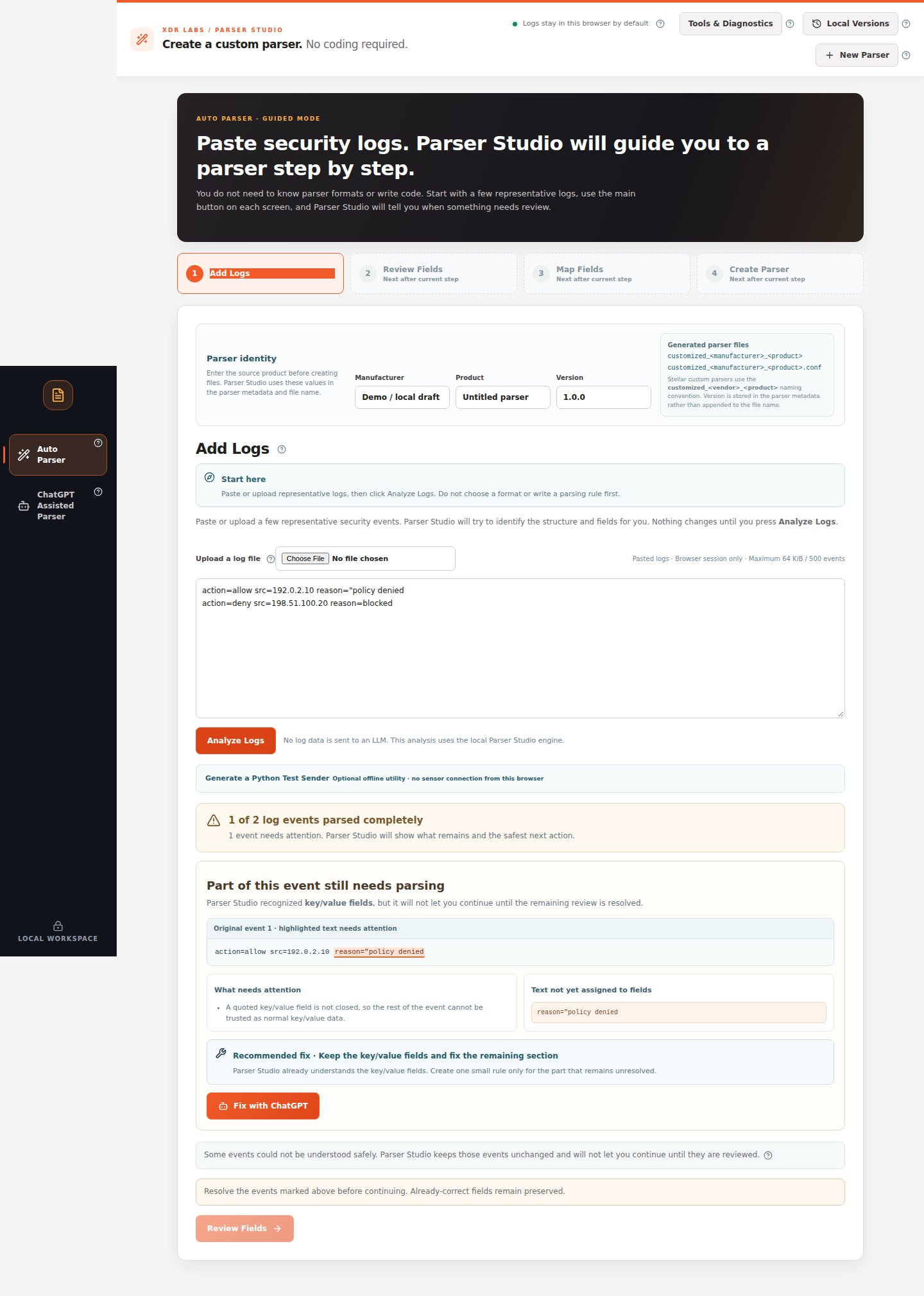
Situation: You pasted several logs, clicked Analyze Logs, and the result says some events need attention. A few fields look right, but the application has highlighted a particular region.
The first record has an unclosed quotation mark. Parser Studio must not pretend that its remaining text is parsed correctly.One event needs attention. The warning identifies the exact original text that cannot be trusted yet.
Stay in Auto Parser → Add Logs after clicking Analyze Logs.
If multiple events are flagged, choose one from Problem to review.
Read What needs attention. Then look at Original event to see the highlighted fragment.
Read Recommended fix. If the problem is an incomplete source copy, obtain the complete original event and paste it again.
If the source is complete but needs an additional supported rule, click Fix with ChatGPT. A reviewable prompt appears—inspect and mask the original text before copying it outside the browser.
Return a supported structured result, test it against additional source events, and apply only a change that passes.
Click Analyze Logs again if the source has changed. Proceed to Review Fields only when no blocking events remain.
The result should identify each event as completely parsed or as a reviewed, supported candidate. Previously correct fields must remain unchanged. Once the Review Fields button becomes available, continue through mapping and file creation.
Use the left navigation ChatGPT Assisted Parser, starting with the same local logs and a separate masked example. Follow the full assistant workflow.
Do not remove a warning by deleting the problematic row. Keeping all important event types is more useful than creating a parser that quietly ignores some of them.
Last modified on October 18, 2026
{"docsConfig":{"theme":"mint","$schema":"https://mintlify.com/docs.json","name":"Parser Studio","description":"Beginner-first security log parsing: paste, analyze, review field mappings, troubleshoot and create reviewed parser drafts.","colors":{"primary":"#1F59E0","light":"#2982E8","dark":"#5B8CFF"},"logo":{"light":"https://mintcdn.com/xdr-parser/ikxjh1RO0I43Fgnk/logo/light.svg?fit=max\u0026auto=format\u0026n=ikxjh1RO0I43Fgnk\u0026q=85\u0026s=5302a6b336dc4d20f4ed89fb69585e96","dark":"https://mintcdn.com/xdr-parser/ikxjh1RO0I43Fgnk/logo/dark.svg?fit=max\u0026auto=format\u0026n=ikxjh1RO0I43Fgnk\u0026q=85\u0026s=3d61852283d0e875f806175b341e81dd","href":"https://parser.xdr.ooo"},"favicon":"https://mintcdn.com/xdr-parser/ikxjh1RO0I43Fgnk/favicon.svg?fit=max\u0026auto=format\u0026n=ikxjh1RO0I43Fgnk\u0026q=85\u0026s=260e8e500d0ac2180e93e6e99f048277","appearance":{"default":"system","strict":false},"navbar":{"links":[{"href":"https://xdr.ooo","label":"XDR Labs"},{"href":"https://github.com/xdr-labs/parser-studio","type":"github"}],"primary":{"type":"button","label":"Start with logs","href":"/quickstart"}},"search":{"prompt":"How do I analyze my logs?"},"seo":{"indexing":"navigable"},"styling":{"eyebrows":"breadcrumbs","latex":false},"metadata":{"timestamp":true},"navigation":{"pages":[]}},"deployment":{"deploymentMetadataValue":{"subdomain":"xdr-parser","hasAudioNarration":false,"actualSubdomain":"xdr-parser","customDomains":["parser.xdr.ooo"],"gitSource":{"type":"github","owner":"xdr-labs","repo":"parser-studio-docs","deployBranch":"main","contentDirectory":"","isPrivate":false,"mountPath":"","label":""},"chroma":{"latestBuiltDeploymentHistoryId":"6ad4f0f61750c8dfe79983de","collectionId":"d71d9dd3-7746-4d82-a03b-1d292da8ad82","liveDeploymentHistoryId":"6ad4f0f61750c8dfe79983de","schemaVersion":"v3"},"entitlements":{},"buildId":"6ad4f2ca6c1765c4cdc13903","clientVersion":"0.0.3880","searchFilterCounts":[{"language":"default","tag":"Auto Parser Scenarios","count":8},{"language":"default","tag":"Reference","count":6},{"language":"default","tag":"ChatGPT Assisted Scenarios","count":4},{"language":"default","tag":"Auto Parser","count":4},{"language":"default","tag":"Start Here","count":3},{"language":"default","tag":"ChatGPT Assisted Parser","count":2},{"language":"default","tag":"Scenario Playbooks","count":1}]},"assistantConfig":{"enableAskAiButton":false,"enableStarterQuestions":false,"enableContextualStarterQuestions":false,"enableAskAiSearchBar":true},"hasChatPermissions":false,"hasWebMcpPermissions":false,"toggles":[{"name":"kill-isr","enabled":true,"variant":{"name":"disabled","enabled":false,"feature_enabled":true},"impressionData":false},{"name":"agent-mintlify-slack","enabled":true,"variant":{"name":"disabled","enabled":false,"feature_enabled":true},"impressionData":false},{"name":"editor-v7-file-tree","enabled":true,"variant":{"name":"disabled","enabled":false,"feature_enabled":true},"impressionData":false},{"name":"agent-integrations-settings","enabled":true,"variant":{"name":"disabled","enabled":false,"feature_enabled":true},"impressionData":false},{"name":"automations-pr-grouping","enabled":true,"variant":{"name":"disabled","enabled":false,"feature_enabled":true},"impressionData":false},{"name":"custom-prefix","enabled":true,"variant":{"name":"disabled","enabled":false,"feature_enabled":true},"impressionData":false},{"name":"analytics-v7","enabled":true,"variant":{"name":"disabled","enabled":false,"feature_enabled":true},"impressionData":false},{"name":"user-flows-analytics","enabled":true,"variant":{"name":"disabled","enabled":false,"feature_enabled":true},"impressionData":false},{"name":"no-publish-flow","enabled":true,"variant":{"name":"disabled","enabled":false,"feature_enabled":true},"impressionData":false},{"name":"llms-txt-v2","enabled":true,"variant":{"name":"disabled","enabled":false,"feature_enabled":true},"impressionData":false},{"name":"pause-universal-search-reconcile","enabled":true,"variant":{"name":"disabled","enabled":false,"feature_enabled":true},"impressionData":false},{"name":"snapshot-serving-live","enabled":true,"variant":{"name":"disabled","enabled":false,"feature_enabled":true},"impressionData":false},{"name":"stripTemperatureMiddleware","enabled":true,"variant":{"name":"disabled","enabled":false,"feature_enabled":true},"impressionData":false},{"name":"per-site-search-delta","enabled":true,"variant":{"name":"disabled","enabled":false,"feature_enabled":true},"impressionData":false},{"name":"support-platform-pylon-zendesk","enabled":true,"variant":{"name":"disabled","enabled":false,"feature_enabled":true},"impressionData":false},{"name":"editor-branches-v2-autocommit","enabled":true,"variant":{"name":"disabled","enabled":false,"feature_enabled":true},"impressionData":false},{"name":"editor-branches-v2","enabled":true,"variant":{"name":"disabled","enabled":false,"feature_enabled":true},"impressionData":false},{"name":"snapshot-serving","enabled":true,"variant":{"name":"disabled","enabled":false,"feature_enabled":true},"impressionData":false},{"name":"instant-rollback","enabled":true,"variant":{"name":"disabled","enabled":false,"feature_enabled":true},"impressionData":false},{"name":"granular-notifications-server","enabled":true,"variant":{"name":"disabled","enabled":false,"feature_enabled":true},"impressionData":false},{"name":"granular-notifications","enabled":true,"variant":{"name":"disabled","enabled":false,"feature_enabled":true},"impressionData":false},{"name":"editor-private-page-search","enabled":true,"variant":{"name":"disabled","enabled":false,"feature_enabled":true},"impressionData":false},{"name":"automations-fable","enabled":true,"variant":{"name":"disabled","enabled":false,"feature_enabled":true},"impressionData":false},{"name":"fixed-ai-action-pricing","enabled":true,"variant":{"name":"disabled","enabled":false,"feature_enabled":true},"impressionData":false},{"name":"automation-resolve-merge-conflict","enabled":true,"variant":{"name":"disabled","enabled":false,"feature_enabled":true},"impressionData":false},{"name":"scoped-publishing","enabled":true,"variant":{"name":"disabled","enabled":false,"feature_enabled":true},"impressionData":false},{"name":"mintql","enabled":true,"variant":{"name":"disabled","enabled":false,"feature_enabled":true},"impressionData":false},{"name":"page-level-analytics","enabled":true,"variant":{"name":"disabled","enabled":false,"feature_enabled":true},"impressionData":false},{"name":"teamspace","enabled":true,"variant":{"name":"disabled","enabled":false,"feature_enabled":true},"impressionData":false},{"name":"editor-version-history-v2","enabled":true,"variant":{"name":"disabled","enabled":false,"feature_enabled":true},"impressionData":false},{"name":"editor-nav-generations","enabled":true,"variant":{"name":"disabled","enabled":false,"feature_enabled":true},"impressionData":false},{"name":"workspace-projects","enabled":true,"variant":{"name":"disabled","enabled":false,"feature_enabled":true},"impressionData":false},{"name":"assistant-v5","enabled":true,"variant":{"name":"disabled","enabled":false,"feature_enabled":true},"impressionData":false},{"name":"byok-sep-25","enabled":true,"variant":{"name":"disabled","enabled":false,"feature_enabled":true},"impressionData":false},{"name":"revalidation-jwt","enabled":true,"variant":{"name":"disabled","enabled":false,"feature_enabled":true},"impressionData":false},{"name":"editor-agent-model-picker","enabled":true,"variant":{"name":"disabled","enabled":false,"feature_enabled":true},"impressionData":false},{"name":"client-snapshot-docs-config","enabled":true,"variant":{"name":"disabled","enabled":false,"feature_enabled":true},"impressionData":false},{"name":"hobby-abuse-scan","enabled":true,"variant":{"name":"disabled","enabled":false,"feature_enabled":true},"impressionData":false}],"isAtlas":false,"googleFontsInlined":false},"customCss":[{"filePath":"style.css","content":":root{--xdr-navy:#0a182d;--xdr-navy-deep:#030f1b;--xdr-blue:#1f59e0;--xdr-blue-bright:#2982e8;--xdr-cyan:#55c7f3;--xdr-orange:#ff9b1d;--xdr-ink:#0f172a;--xdr-muted:#64748b;--xdr-border:rgba(148, 163, 184, 0.22)}html{scroll-behavior:smooth}body{font-family:Inter,ui-sans-serif,system-ui,-apple-system,BlinkMacSystemFont,\"Segoe UI\",sans-serif}h1,h2,h3{letter-spacing:-.025em}a{text-underline-offset:.18em}.xdr-hero{position:relative;overflow:hidden;margin:0 0 2.5rem;padding:clamp(2rem,5vw,4.5rem);border:1px solid rgba(85,199,243,.22);border-radius:28px;background:radial-gradient(circle at 82% 18%,rgba(41,130,232,.42),transparent 30%),radial-gradient(circle at 10% 110%,rgba(31,89,224,.34),transparent 38%),linear-gradient(135deg,var(--xdr-navy-deep) 0%,var(--xdr-navy) 58%,#102a51 100%);box-shadow:0 28px 70px rgba(3,15,27,.24);color:#fff}.xdr-hero::before{content:\"\";position:absolute;inset:0;background-image:linear-gradient(rgba(255,255,255,.035) 1px,transparent 1px),linear-gradient(90deg,rgba(255,255,255,.035) 1px,transparent 1px);background-size:42px 42px;mask-image:linear-gradient(to bottom,rgba(0,0,0,.8),transparent 85%)}.xdr-hero::after{content:\"\";position:absolute;width:18rem;height:18rem;right:-5rem;top:-7rem;border-radius:999px;border:1px solid rgba(255,155,29,.38);box-shadow:0 0 90px rgba(255,155,29,.1)}.xdr-hero>*{position:relative;z-index:1}.xdr-kicker{margin:0 0 .9rem;color:#9edfff;font-size:.78rem;font-weight:800;letter-spacing:.14em;text-transform:uppercase}.xdr-hero-title{max-width:14ch;margin:0;color:#fff!important;font-size:clamp(2.35rem,6vw,4.8rem);font-weight:780;line-height:.98;letter-spacing:-.055em}.xdr-hero-copy{max-width:48rem;margin:1.5rem 0 0;color:#d8e6f8;font-size:clamp(1rem,1.6vw,1.2rem);line-height:1.75}.xdr-hero-actions{display:flex;flex-wrap:wrap;gap:.75rem;margin-top:1.8rem}.xdr-hero-actions a{display:inline-flex;align-items:center;justify-content:center;min-height:2.9rem;padding:.72rem 1.1rem;border-radius:999px;font-weight:750;text-decoration:none!important;transition:transform 160ms ease,box-shadow 160ms ease,border-color 160ms ease}.xdr-hero-actions a:hover{transform:translateY(-1px)}.xdr-hero-primary{background:linear-gradient(135deg,var(--xdr-blue),#1e4eb8);color:#fff!important;box-shadow:0 12px 28px rgba(31,89,224,.34)}.xdr-hero-secondary{border:1px solid rgba(255,255,255,.24);background:rgba(255,255,255,.07);color:#fff!important;backdrop-filter:blur(10px)}.xdr-signal-grid{display:grid;grid-template-columns:repeat(3,minmax(0,1fr));gap:.75rem;margin-top:2.1rem}.xdr-signal{min-height:7.25rem;padding:1rem 1.05rem;border:1px solid rgba(255,255,255,.12);border-radius:18px;background:rgba(5,18,38,.48);backdrop-filter:blur(12px)}.xdr-signal strong{display:block;margin-bottom:.35rem;color:#fff;font-size:1rem}.xdr-signal span{color:#b9cbe0;font-size:.88rem;line-height:1.5}.xdr-section-intro{max-width:47rem;margin:-.4rem 0 1.25rem;color:var(--xdr-muted);font-size:1.02rem;line-height:1.7}article h2{margin-top:2.8rem}article table{border-radius:16px;overflow:hidden}article img{border-radius:14px}.dark .xdr-section-intro{color:#94a3b8}@media (max-width:720px){.xdr-hero{padding:1.6rem;border-radius:22px}.xdr-hero-title{font-size:clamp(2.15rem,12vw,3.2rem)}.xdr-hero-actions{flex-direction:column}.xdr-hero-actions a{width:100%}.xdr-signal-grid{grid-template-columns:1fr}}@media (prefers-reduced-motion:reduce){html{scroll-behavior:auto}.xdr-hero-actions a{transition:none}}.ps-shot{margin:1.3rem 0 2rem}.ps-shot img{display:block;width:100%;height:auto;box-shadow:0 16px 36px rgba(10,24,45,.11)}.ps-shot figcaption{font-size:.87rem;line-height:1.55;color:var(--xdr-muted);margin-top:.6rem}.dark .ps-shot figcaption{color:#a7b8cc}.ps-flow{display:flex;flex-wrap:wrap;align-items:center;gap:.55rem;margin:1.2rem 0 2rem}.ps-flow span{border:1px solid rgba(31,89,224,.25);background:rgba(31,89,224,.06);border-radius:12px;padding:.65rem .8rem;font-weight:700;font-size:.88rem}.ps-flow b{color:var(--xdr-blue);font-weight:800}.ps-shot img,.ps-step-graphic{border:1px solid var(--xdr-border);border-radius:16px}.ps-step-graphic{max-width:100%}@media (max-width:720px){.ps-shot img{border-radius:12px}.ps-flow{gap:.3rem}.ps-flow span{font-size:.76rem}}"}],"page":{"pagePath":"scenarios/partial-event","slug":"/scenarios/partial-event","pageMetadata":{"title":"One log is only partly parsed | Fix the highlighted section","sidebarTitle":"Some Fields Missing","description":"What to click when some fields are correct but one portion of an event is not understood.","href":"/scenarios/partial-event"},"description":{"compiledSource":"\"use strict\";\nconst {jsx: _jsx} = arguments[0];\nconst {useMDXComponents: _provideComponents} = arguments[0];\nfunction _createMdxContent(props) {\n const _components = {\n p: \"p\",\n ..._provideComponents(),\n ...props.components\n };\n return _jsx(_components.p, {\n children: \"What to click when some fields are correct but one portion of an event is not understood.\"\n });\n}\nfunction MDXContent(props = {}) {\n const {wrapper: MDXLayout} = {\n ..._provideComponents(),\n ...props.components\n };\n return MDXLayout ? _jsx(MDXLayout, {\n ...props,\n children: _jsx(_createMdxContent, {\n ...props\n })\n }) : _createMdxContent(props);\n}\nreturn {\n default: MDXContent\n};\n","frontmatter":{},"scope":{}},"pageType":"default","mdx":{"mdxSource":{"compiledSource":"\"use strict\";const{Fragment:_Fragment,jsx:_jsx,jsxs:_jsxs}=arguments[0];const{useMDXComponents:_provideComponents}=arguments[0];function _createMdxContent(props){const _components={a:`a`,code:`code`,em:`em`,li:`li`,ol:`ol`,p:`p`,pre:`pre`,span:`span`,strong:`strong`,..._provideComponents(),...props.components},{CodeBlock,Heading,OptimizedImage,Warning}=_components;if(!CodeBlock)_missingMdxReference(`CodeBlock`,true);if(!Heading)_missingMdxReference(`Heading`,true);if(!OptimizedImage)_missingMdxReference(`OptimizedImage`,true);if(!Warning)_missingMdxReference(`Warning`,true);return _jsxs(_Fragment,{children:[_jsx(Heading,{level:`1`,id:`some-fields-are-correct-but-part-of-my-log-is-missing`,children:`Some fields are correct, but part of my log is missing`}),`\n`,_jsxs(_components.p,{children:[_jsx(_components.strong,{children:`Situation:`}),` You pasted several logs, clicked `,_jsx(_components.strong,{children:`Analyze Logs`}),`, and the result says some events need attention. A few fields look right, but the application has highlighted a particular region.`]}),`\n`,_jsx(Heading,{level:`2`,id:`example-you-can-try`,children:`Example you can try`}),`\n`,_jsx(CodeBlock,{filename:``,numberOfLines:`3`,language:`text`,children:_jsx(_components.pre,{className:`shiki shiki-themes github-light-default dark-plus`,style:{backgroundColor:`#ffffff`,\"--shiki-dark-bg\":`#0B0C0E`,color:`#1f2328`,\"--shiki-dark\":`#D4D4D4`},language:`text`,children:_jsxs(_components.code,{language:`text`,numberOfLines:`3`,children:[_jsx(_components.span,{className:`line`,children:_jsx(_components.span,{children:`action=allow src=192.0.2.10 reason=\"policy denied`})}),`\n`,_jsx(_components.span,{className:`line`,children:_jsx(_components.span,{children:`action=deny src=198.51.100.20 reason=blocked`})}),`\n`,_jsx(_components.span,{className:`line`,children:_jsx(_components.span,{})})]})})}),`\n`,_jsx(_components.p,{children:`The first record has an unclosed quotation mark. Parser Studio must not pretend that its remaining text is parsed correctly.`}),`\n`,_jsx(OptimizedImage,{src:`https://mintcdn.com/xdr-parser/DkeLTskQMJz9hCfD/images/07-partial-analysis.png?fit=max\u0026auto=format\u0026n=DkeLTskQMJz9hCfD\u0026q=85\u0026s=b68e35c48aaccba3cb73884a36137f91`,alt:`Partly recognized key/value log where a quoted value is not closed`,\"data-og-width\":`1440`,width:`1440`,\"data-og-height\":`2019`,height:`2019`,\"data-path\":`images/07-partial-analysis.png`,\"data-optimize\":`true`,\"data-opv\":`3`,srcset:`https://mintcdn.com/xdr-parser/DkeLTskQMJz9hCfD/images/07-partial-analysis.png?w=280\u0026fit=max\u0026auto=format\u0026n=DkeLTskQMJz9hCfD\u0026q=85\u0026s=12a33249da3ce15b23feafd857bcf5c4 280w, https://mintcdn.com/xdr-parser/DkeLTskQMJz9hCfD/images/07-partial-analysis.png?w=560\u0026fit=max\u0026auto=format\u0026n=DkeLTskQMJz9hCfD\u0026q=85\u0026s=77d82c8d9d499c88ef299a2e1c6dc20a 560w, https://mintcdn.com/xdr-parser/DkeLTskQMJz9hCfD/images/07-partial-analysis.png?w=840\u0026fit=max\u0026auto=format\u0026n=DkeLTskQMJz9hCfD\u0026q=85\u0026s=06ab2f1337dcdcfb0deeceba775eaa4a 840w, https://mintcdn.com/xdr-parser/DkeLTskQMJz9hCfD/images/07-partial-analysis.png?w=1100\u0026fit=max\u0026auto=format\u0026n=DkeLTskQMJz9hCfD\u0026q=85\u0026s=73a683a170dcc080b4fcd51acdc5e103 1100w, https://mintcdn.com/xdr-parser/DkeLTskQMJz9hCfD/images/07-partial-analysis.png?w=1650\u0026fit=max\u0026auto=format\u0026n=DkeLTskQMJz9hCfD\u0026q=85\u0026s=66e04f43ffd21c8053191000383e705f 1650w, https://mintcdn.com/xdr-parser/DkeLTskQMJz9hCfD/images/07-partial-analysis.png?w=2500\u0026fit=max\u0026auto=format\u0026n=DkeLTskQMJz9hCfD\u0026q=85\u0026s=4dad7b77fb800ebd30ee424e0e7eea5f 2500w`}),`\n`,_jsx(_components.p,{children:_jsx(_components.em,{children:`One event needs attention. The warning identifies the exact original text that cannot be trusted yet.`})}),`\n`,_jsx(Heading,{level:`2`,id:`walkthrough`,children:`Walkthrough`}),`\n`,_jsxs(_components.ol,{children:[`\n`,_jsxs(_components.li,{children:[`Stay in `,_jsx(_components.strong,{children:`Auto Parser → Add Logs`}),` after clicking `,_jsx(_components.strong,{children:`Analyze Logs`}),`.`]}),`\n`,_jsxs(_components.li,{children:[`If multiple events are flagged, choose one from `,_jsx(_components.strong,{children:`Problem to review`}),`.`]}),`\n`,_jsxs(_components.li,{children:[`Read `,_jsx(_components.strong,{children:`What needs attention`}),`. Then look at `,_jsx(_components.strong,{children:`Original event`}),` to see the highlighted fragment.`]}),`\n`,_jsxs(_components.li,{children:[`Read `,_jsx(_components.strong,{children:`Recommended fix`}),`. If the problem is an incomplete source copy, obtain the complete original event and paste it again.`]}),`\n`,_jsxs(_components.li,{children:[`If the source is complete but needs an additional supported rule, click `,_jsx(_components.strong,{children:`Fix with ChatGPT`}),`. A reviewable prompt appears—`,_jsx(_components.strong,{children:`inspect and mask the original text`}),` before copying it outside the browser.`]}),`\n`,_jsx(_components.li,{children:`Return a supported structured result, test it against additional source events, and apply only a change that passes.`}),`\n`,_jsxs(_components.li,{children:[`Click `,_jsx(_components.strong,{children:`Analyze Logs`}),` again if the source has changed. Proceed to `,_jsx(_components.strong,{children:`Review Fields`}),` only when no blocking events remain.`]}),`\n`]}),`\n`,_jsx(Heading,{level:`2`,id:`expected-review-outcome`,children:`Expected review outcome`}),`\n`,_jsxs(_components.p,{children:[`The result should identify each event as completely parsed or as a reviewed, supported candidate. Previously correct fields must remain unchanged. Once the `,_jsx(_components.strong,{children:`Review Fields`}),` button becomes available, continue through `,_jsx(_components.a,{href:`/quickstart`,children:`mapping and file creation`}),`.`]}),`\n`,_jsx(Heading,{level:`2`,id:`recovery-path`,children:`Recovery path`}),`\n`,_jsxs(_components.p,{children:[`Use the left navigation `,_jsx(_components.strong,{children:`ChatGPT Assisted Parser`}),`, starting with the same local logs and a separate masked example. Follow `,_jsx(_components.a,{href:`/workflows/chatgpt-assisted`,children:`the full assistant workflow`}),`.`]}),`\n`,_jsx(Warning,{children:_jsx(_components.p,{children:`Do not remove a warning by deleting the problematic row. Keeping all important event types is more useful than creating a parser that quietly ignores some of them.`})})]})}function MDXContent(props={}){const{wrapper:MDXLayout}={..._provideComponents(),...props.components};return MDXLayout?_jsx(MDXLayout,{...props,children:_jsx(_createMdxContent,{...props})}):_createMdxContent(props)}return{default:MDXContent};function _missingMdxReference(id,component){throw new Error(`Expected `+(component?`component`:`object`)+\" `\"+id+\"` to be defined: you likely forgot to import, pass, or provide it.\")}","frontmatter":{},"scope":{"config":{},"pageMetadata":{"title":"One log is only partly parsed | Fix the highlighted section","sidebarTitle":"Some Fields Missing","description":"What to click when some fields are correct but one portion of an event is not understood.","href":"/scenarios/partial-event"}}},"mdxSourceWithNoJs":null},"mdxExtracts":{"tableOfContents":[{"title":"Some fields are correct, but part of my log is missing","slug":"some-fields-are-correct-but-part-of-my-log-is-missing","depth":1,"children":[]},{"title":"Example you can try","slug":"example-you-can-try","depth":2,"children":[]},{"title":"Walkthrough","slug":"walkthrough","depth":2,"children":[]},{"title":"Expected review outcome","slug":"expected-review-outcome","depth":2,"children":[]},{"title":"Recovery path","slug":"recovery-path","depth":2,"children":[]}],"codeExamples":{}},"jsLinks":[],"subdomain":"xdr-parser","siteName":"Parser Studio","title":"One log is only partly parsed | Fix the highlighted section - Parser Studio","navMaps":{"firstHrefInVersion":{},"firstHrefInLanguage":{}},"lastModified":"2026-10-18T16:16:58.637Z","gitLastModified":"2026-10-18T16:16:50.000Z","originalFileLocation":"scenarios/partial-event.mdx"},"headHtml":"\u003cmeta data-mint-head name=\"description\" content=\"What to click when some fields are correct but one portion of an event is not understood.\">\u003cmeta data-mint-head name=\"application-name\" content=\"Parser Studio\">\u003cmeta data-mint-head name=\"generator\" content=\"Mintlify\">\u003clink data-mint-head rel=\"icon\" type=\"image/png\" sizes=\"192x192\" href=\"/mintlify-assets/_mintlify/favicons/xdr-parser/YjiRvGtQHtPcUWmA/_generated/favicon/android-chrome-192x192.png\" media=\"(prefers-color-scheme: light)\">\u003clink data-mint-head rel=\"apple-touch-icon\" type=\"image/png\" sizes=\"180x180\" href=\"/mintlify-assets/_mintlify/favicons/xdr-parser/YjiRvGtQHtPcUWmA/_generated/favicon/apple-touch-icon.png\">\u003clink data-mint-head rel=\"icon\" type=\"image/png\" sizes=\"16x16\" href=\"/mintlify-assets/_mintlify/favicons/xdr-parser/YjiRvGtQHtPcUWmA/_generated/favicon/favicon-16x16.png\" media=\"(prefers-color-scheme: light)\">\u003clink data-mint-head rel=\"icon\" type=\"image/png\" sizes=\"32x32\" href=\"/mintlify-assets/_mintlify/favicons/xdr-parser/YjiRvGtQHtPcUWmA/_generated/favicon/favicon-32x32.png\" media=\"(prefers-color-scheme: light)\">\u003clink data-mint-head rel=\"shortcut icon\" type=\"image/x-icon\" href=\"/mintlify-assets/_mintlify/favicons/xdr-parser/YjiRvGtQHtPcUWmA/_generated/favicon/favicon.ico\" media=\"(prefers-color-scheme: light)\">\u003clink data-mint-head rel=\"icon\" type=\"image/png\" sizes=\"192x192\" href=\"/mintlify-assets/_mintlify/favicons/xdr-parser/YjiRvGtQHtPcUWmA/_generated/favicon-dark/android-chrome-192x192.png\" media=\"(prefers-color-scheme: dark)\">\u003clink data-mint-head rel=\"icon\" type=\"image/png\" sizes=\"16x16\" href=\"/mintlify-assets/_mintlify/favicons/xdr-parser/YjiRvGtQHtPcUWmA/_generated/favicon-dark/favicon-16x16.png\" media=\"(prefers-color-scheme: dark)\">\u003clink data-mint-head rel=\"icon\" type=\"image/png\" sizes=\"32x32\" href=\"/mintlify-assets/_mintlify/favicons/xdr-parser/YjiRvGtQHtPcUWmA/_generated/favicon-dark/favicon-32x32.png\" media=\"(prefers-color-scheme: dark)\">\u003clink data-mint-head rel=\"shortcut icon\" type=\"image/x-icon\" href=\"/mintlify-assets/_mintlify/favicons/xdr-parser/YjiRvGtQHtPcUWmA/_generated/favicon-dark/favicon.ico\" media=\"(prefers-color-scheme: dark)\">\u003cmeta data-mint-head property=\"og:title\" content=\"One log is only partly parsed | Fix the highlighted section - Parser Studio\">\u003cmeta data-mint-head property=\"og:description\" content=\"What to click when some fields are correct but one portion of an event is not understood.\">\u003cmeta data-mint-head property=\"og:site_name\" content=\"Parser Studio\">\u003cmeta data-mint-head property=\"og:url\" content=\"https://parser.xdr.ooo/scenarios/partial-event\">\u003cmeta data-mint-head property=\"og:type\" content=\"website\">\u003cmeta data-mint-head name=\"twitter:card\" content=\"summary_large_image\">\u003cmeta data-mint-head name=\"twitter:title\" content=\"One log is only partly parsed | Fix the highlighted section - Parser Studio\">\u003cmeta data-mint-head name=\"twitter:description\" content=\"What to click when some fields are correct but one portion of an event is not understood.\">\u003cmeta data-mint-head name=\"msapplication-config\" content=\"/mintlify-assets/_mintlify/favicons/xdr-parser/YjiRvGtQHtPcUWmA/_generated/favicon/browserconfig.xml\">\u003cmeta data-mint-head name=\"apple-mobile-web-app-title\" content=\"Parser Studio\">\u003cmeta data-mint-head name=\"msapplication-TileColor\" content=\"#1F59E0\">\u003clink data-mint-head rel=\"canonical\" href=\"https://parser.xdr.ooo/scenarios/partial-event\">\u003clink data-mint-head rel=\"alternate\" type=\"application/xml\" href=\"/sitemap.xml\">\u003clink data-mint-head rel=\"alternate\" type=\"text/markdown\" href=\"/scenarios/partial-event.md\">\u003cscript data-mint-head type=\"application/ld+json\">{\"@context\":\"https://schema.org\",\"@graph\":[{\"@type\":\"Organization\",\"@id\":\"https://parser.xdr.ooo/#organization\",\"name\":\"Parser Studio\",\"url\":\"https://parser.xdr.ooo\",\"logo\":{\"@type\":\"ImageObject\",\"url\":\"https://mintcdn.com/xdr-parser/ikxjh1RO0I43Fgnk/logo/light.svg?fit=max\u0026auto=format\u0026n=ikxjh1RO0I43Fgnk\u0026q=85\u0026s=5302a6b336dc4d20f4ed89fb69585e96\"}},{\"@type\":\"WebSite\",\"@id\":\"https://parser.xdr.ooo#website\",\"name\":\"Parser Studio\",\"url\":\"https://parser.xdr.ooo\",\"publisher\":{\"@id\":\"https://parser.xdr.ooo/#organization\"}},{\"@type\":\"WebPage\",\"@id\":\"https://parser.xdr.ooo/scenarios/partial-event#webpage\",\"url\":\"https://parser.xdr.ooo/scenarios/partial-event\",\"name\":\"One log is only partly parsed | Fix the highlighted section\",\"description\":\"What to click when some fields are correct but one portion of an event is not understood.\",\"dateModified\":\"2026-10-18T16:16:50.000Z\",\"isPartOf\":{\"@id\":\"https://parser.xdr.ooo#website\"},\"breadcrumb\":{\"@id\":\"https://parser.xdr.ooo/scenarios/partial-event#breadcrumb\"}},{\"@type\":\"BreadcrumbList\",\"@id\":\"https://parser.xdr.ooo/scenarios/partial-event#breadcrumb\",\"itemListElement\":[{\"@type\":\"ListItem\",\"position\":1,\"name\":\"Auto Parser Scenarios\",\"item\":\"https://parser.xdr.ooo/scenarios/auto-success\"},{\"@type\":\"ListItem\",\"position\":2,\"name\":\"One log is only partly parsed | Fix the highlighted section\",\"item\":\"https://parser.xdr.ooo/scenarios/partial-event\"}]},{\"@type\":[\"Article\",\"TechArticle\"],\"@id\":\"https://parser.xdr.ooo/scenarios/partial-event#article\",\"headline\":\"One log is only partly parsed | Fix the highlighted section\",\"name\":\"One log is only partly parsed | Fix the highlighted section\",\"description\":\"What to click when some fields are correct but one portion of an event is not understood.\",\"url\":\"https://parser.xdr.ooo/scenarios/partial-event\",\"mainEntityOfPage\":{\"@id\":\"https://parser.xdr.ooo/scenarios/partial-event#webpage\"},\"dateModified\":\"2026-10-18T16:16:50.000Z\",\"publisher\":{\"@id\":\"https://parser.xdr.ooo/#organization\"},\"isPartOf\":{\"@id\":\"https://parser.xdr.ooo#website\"}}]}\u003c/script>\u003cscript data-mint-head type=\"application/ld+json\">{\"@context\":\"https://schema.org\",\"@type\":\"WebSite\",\"name\":\"Parser Studio\",\"creator\":{\"@type\":\"Organization\",\"name\":\"Mintlify\",\"url\":\"https://mintlify.com\"}}\u003c/script>","siteName":"Parser Studio","nav":{"global":null,"groups":[{"group":"Start Here","icon":"rocket","pages":[{"title":"Parser Studio | Start with your logs","sidebarTitle":"Overview","href":"/index"},{"title":"Quickstart | Paste logs and create a parser","sidebarTitle":"My First Parser","href":"/quickstart"},{"title":"Choose what to do next","sidebarTitle":"What Do I Do Next?","href":"/choose-workflow"}]},{"group":"Auto Parser","icon":"wand-magic-sparkles","pages":[{"title":"Auto Parser | From pasted logs to files","sidebarTitle":"Auto Parser","href":"/workflows/auto-parser"},{"title":"Review Fields | Are the values correct?","sidebarTitle":"Review Extracted Values","href":"/workflows/review-fields"},{"title":"Map Fields | Fix output field names","sidebarTitle":"Fix Field Names","href":"/workflows/map-fields"},{"title":"Create Parser | Final test and file download","sidebarTitle":"Download Parser Files","href":"/workflows/create-and-download"}]},{"group":"ChatGPT Assisted Parser","icon":"comments","pages":[{"title":"ChatGPT Assisted Parser | When logs are unfamiliar","sidebarTitle":"Use ChatGPT","href":"/workflows/chatgpt-assisted"},{"title":"Check a proposed fix on new logs","sidebarTitle":"Check a Suggested Fix","href":"/workflows/holdout-validation"}]},{"group":"Scenario Playbooks","icon":"compass","pages":[{"title":"Scenario Playbooks: choose what happened","sidebarTitle":"Choose My Situation","href":"/scenarios/index"}]},{"group":"Auto Parser Scenarios","icon":"wand-magic-sparkles","pages":[{"title":"Auto Parser: all logs were recognized","sidebarTitle":"All Logs Recognized","description":"From a successful analysis to checked field mappings and downloadable parser files.","href":"/scenarios/auto-success"},{"title":"One log is only partly parsed | Fix the highlighted section","sidebarTitle":"Some Fields Missing","href":"/scenarios/partial-event"},{"title":"Auto Parser: one product sends several event types","sidebarTitle":"Multiple Event Types","description":"Analyze traffic, threat and user events together, review optional fields and correct mappings before creating one combined draft.","href":"/scenarios/mixed-events"},{"title":"Auto Parser: source values have no names","sidebarTitle":"Unnamed Values","href":"/scenarios/unnamed-values"},{"title":"The fields were found, but their output names are wrong","sidebarTitle":"Wrong Output Field","href":"/scenarios/normalization"},{"title":"Auto Parser: one event spans several lines","sidebarTitle":"Long Events","href":"/scenarios/long-events"},{"title":"Compare two parser attempts without losing your work","sidebarTitle":"Compare Parser Attempts","href":"/scenarios/revisions"},{"title":"Create changing test logs from your sample","sidebarTitle":"Generate Test Logs","href":"/scenarios/test-sender"}]},{"group":"ChatGPT Assisted Scenarios","icon":"comments","pages":[{"title":"Parser Studio does not understand my log","sidebarTitle":"Log Not Understood","href":"/scenarios/unknown-log"},{"title":"Use ChatGPT to fix an unfamiliar field","sidebarTitle":"ChatGPT Walkthrough","href":"/scenarios/recipe-ai"},{"title":"ChatGPT: the suggested result was rejected","sidebarTitle":"AI Result Rejected","href":"/scenarios/ai-invalid-response"},{"title":"ChatGPT: test the proposed fix on other logs","sidebarTitle":"Check a Proposed Fix","href":"/scenarios/ai-test-change"}]},{"group":"Reference","icon":"book-open","pages":[{"title":"What kinds of logs can I paste?","sidebarTitle":"How Formats Work","href":"/reference/supported-formats"},{"title":"Which files can I download?","sidebarTitle":"Downloaded Files","href":"/reference/output-artifacts"},{"title":"What happens to the logs I paste?","sidebarTitle":"Protect Sensitive Logs","href":"/reference/source-privacy"},{"title":"Something went wrong—what should I click?","sidebarTitle":"Fix a Problem","href":"/reference/troubleshooting"},{"title":"Plain-language words used by Parser Studio","sidebarTitle":"Glossary","href":"/reference/glossary"},{"title":"Common beginner questions","sidebarTitle":"Frequently Asked Questions","href":"/reference/faq"}]}]},"title":"One log is only partly parsed | Fix the highlighted section - Parser Studio","buildId":"dpl_8yzRtH9eErzJnpfBBed2uBNYhAmY","deploymentId":"dpl_8yzRtH9eErzJnpfBBed2uBNYhAmY","dynamics":["a74be98ba7"],"chunks":["zoom-image-lightbox-DvOftRu4.js","PlusIcon-Dp6gKFvH.js","lightbox-handle-r17bVUz3.js"]}